Publish Variables
The Publish Variables section within the Publish to Stores module is a feature that allows you to set up and manage key-value pairs that are essential for the app publishing process.
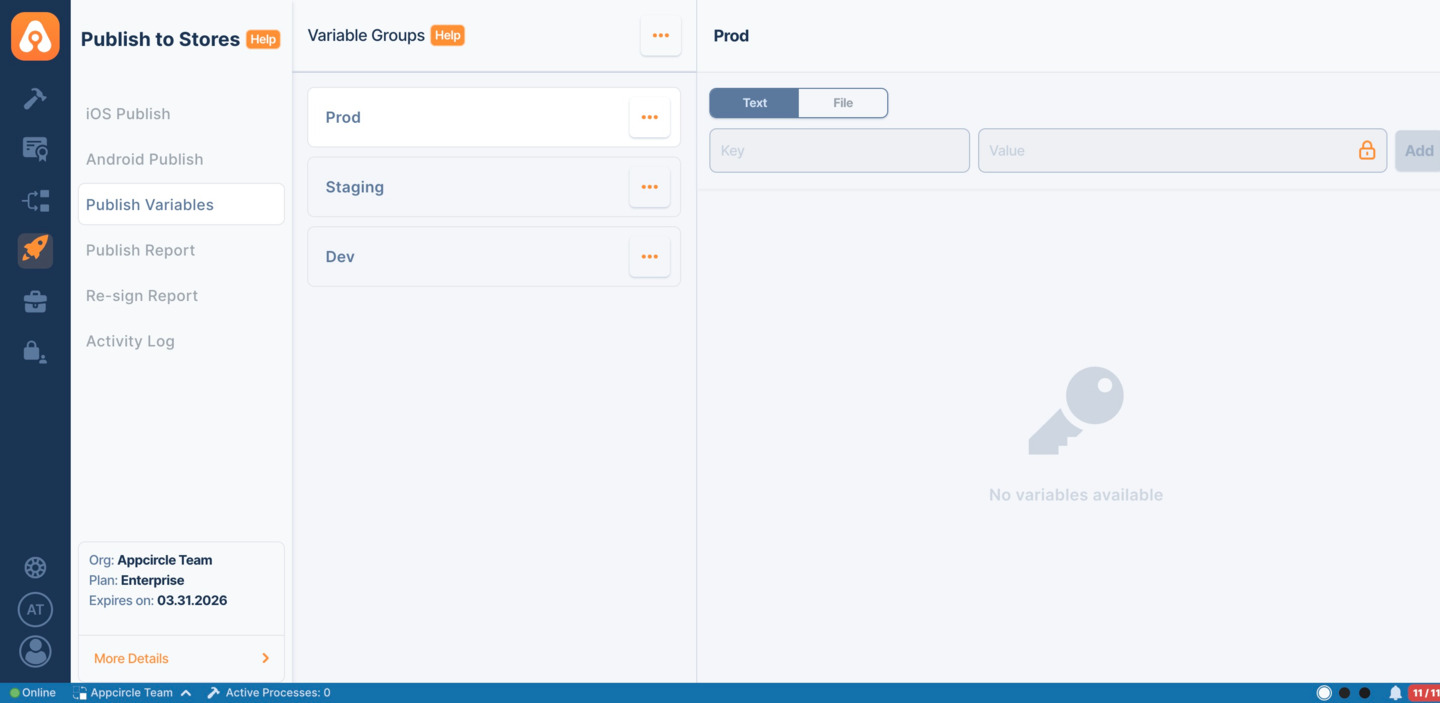
To use these defined variables, it will be necessary to select them from the Publish Settings.
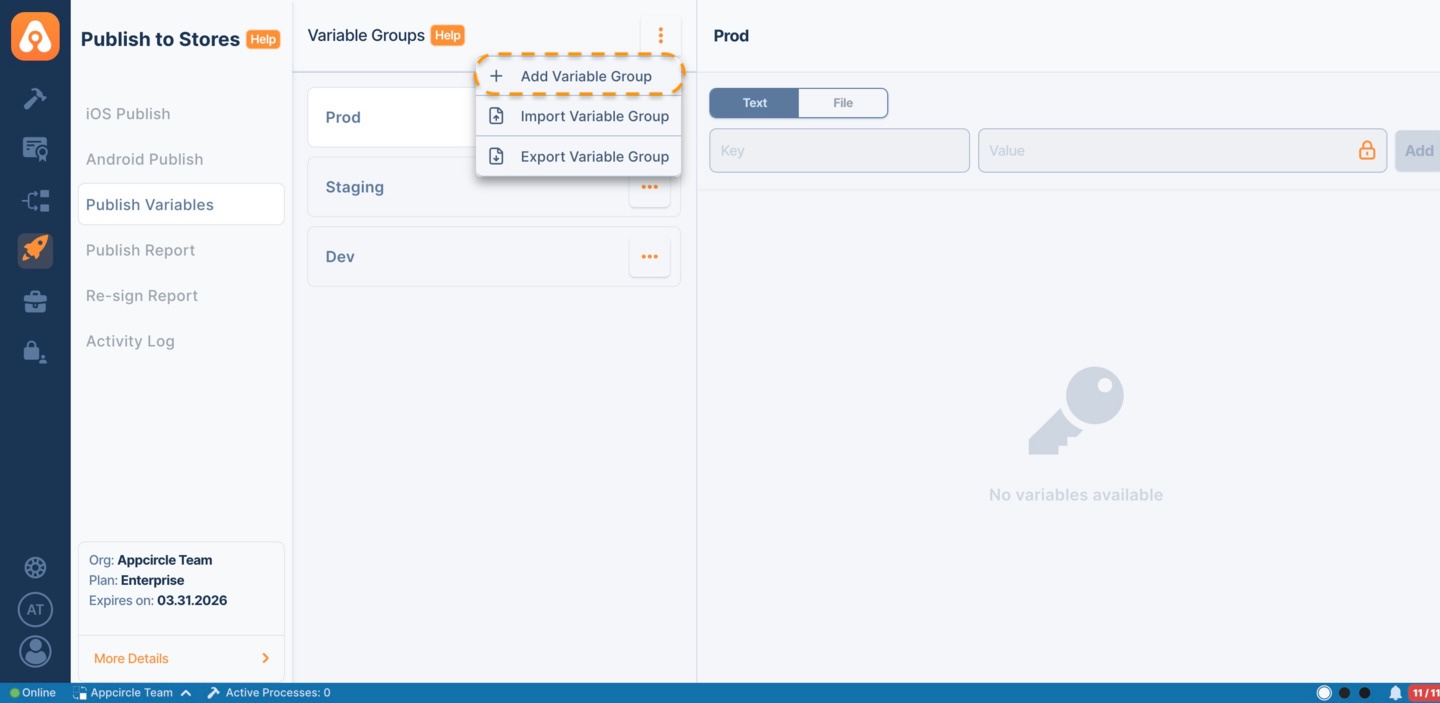
Publish Variables are key-value pairs that can be used to store configuration settings, credentials, and other data required during the publish process. You can add new variables directly in the Publish Variables section without the need for an additional menu or button. You can also import or export publish variable groups in bulk from the three dots menu next to Variable Groups.
How to Add a New Publish Variable
-
Input the Key-Value Pair:
- Locate the input fields under the 'Publish Variables' header.
- Enter the name of the variable in the 'Key' input field.
- Enter the corresponding value in the 'Value' input field.
-
Select Variable Type:
- Choose the type of variable you're adding. Options typically include:
- Text: for string or numeric values.
- File: if you're assigning a file as the variable's value.
- Choose the type of variable you're adding. Options typically include:
-
Add the Variable:
- Click the 'Add' button to save the new variable.
-
Review and Confirm:
- Once added, the new variable will appear in the list of Publish Variables.
- Ensure that the details are correct and the variable is saved properly.
Example Variable
In the example provided:
- Key Name:
Foo - Value:
Bar - Type:
Text
Remember to handle these variables with care, especially if they contain sensitive information such as passwords, tokens, or API keys.
Please note that Publish Variables can only be used within the Publish to Stores module.
You can edit encrypted variables by clicking the Edit option, just like text variables. The original value will not be displayed for security reasons; however, the updated value will be saved.
Exporting publish variable groups
You can export publish variable groups in bulk as a .zip file.
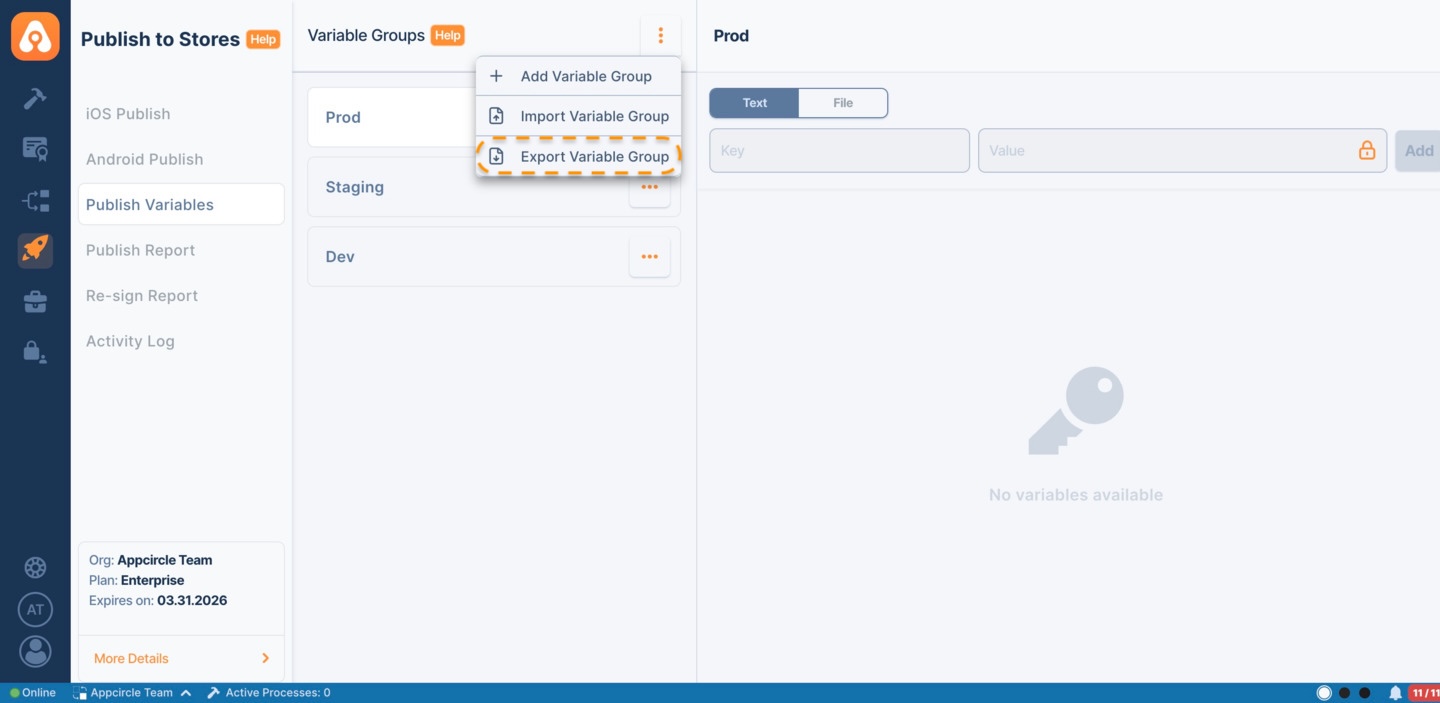
To export variable groups, click on the three dots icon next to Variable Groups and select Export Variable Group.
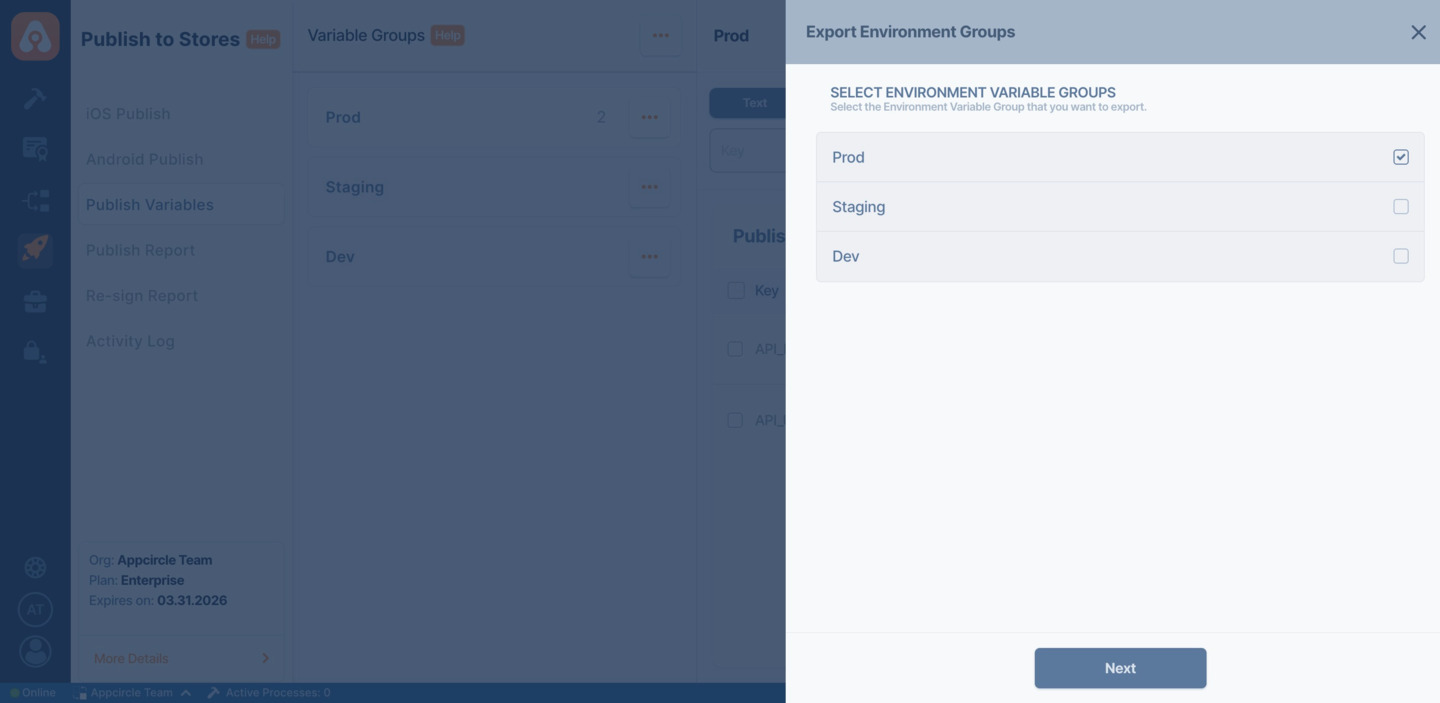
In the export modal:
- You can select one or more publish variable groups.
- All selected groups will be included in the exported file.
- The export will be downloaded as a
.zipfile.
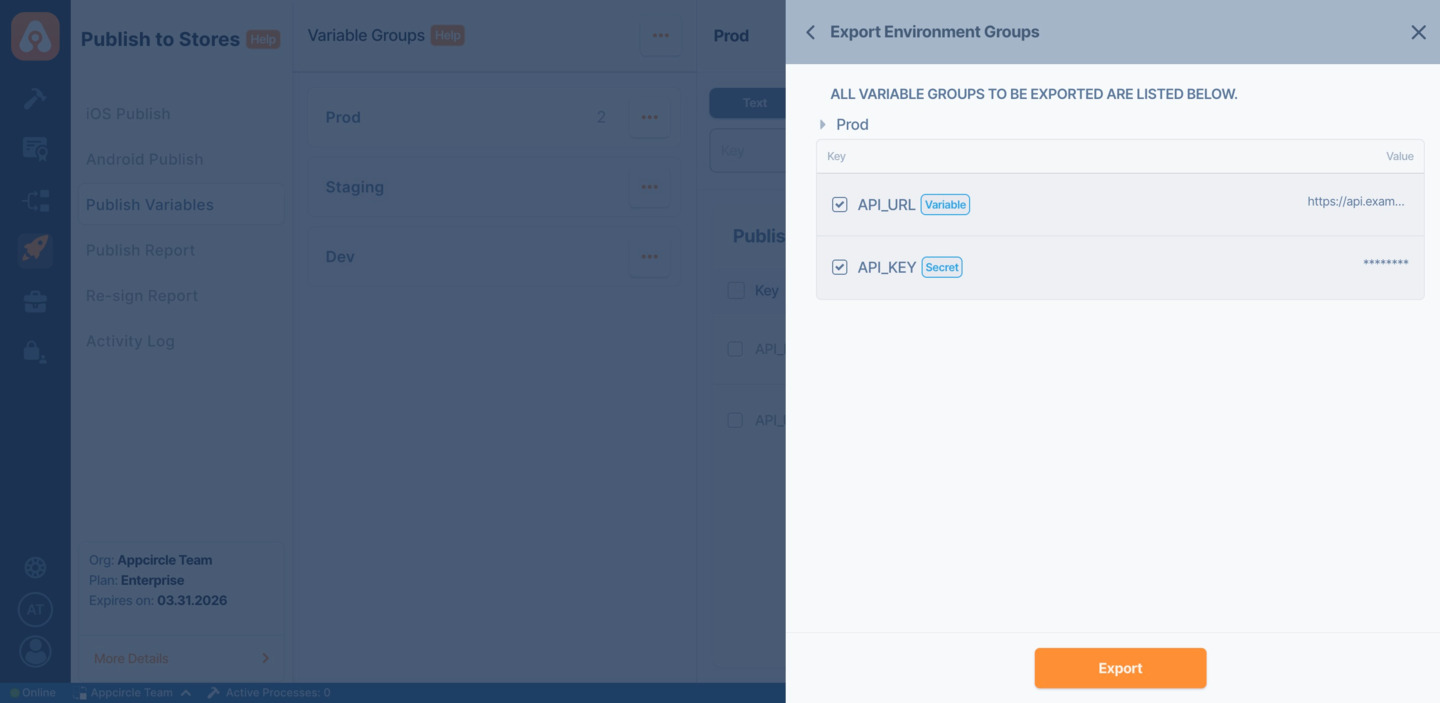
- Secret variables and file contents are not exposed directly for security reasons.
- Exporting multiple groups at once helps you back up or migrate configurations more easily.
[
  {"Id":"8260f439-d074-4f10-9361-66fe96480904",
    "Name":"Prod",
    "Variables":
    [
      {"Key":"API_URL",
        "Value":"https://qa.example.com",
        "IsSecret":false,"IsFile":false},
      {"Key":"API_SECRET",
        "Value":"",
        "IsSecret":true,"IsFile":false},
      {"Key":"API_KEY",
        "Value":"",
        "IsSecret":true,"IsFile":false},
      {"Key":"TestFile",
        "Value":"ac_post_process_output-2.json",
        "IsSecret":false,"IsFile":true}]},
  {"Id":"03bc80ee-972d-4214-9963-a4bfa8fd2d1c",
    "Name":"Dev",
    "Variables":
    [{"Key":"test",
      "Value":"",
      "IsSecret":true,"IsFile":false}]},
  {"Id":"f71c685c-5844-4099-9561-a12e76f667bd",
    "Name":"Staging",
    "Variables":
    [{"Key":"test2",
      "Value":"",
      "IsSecret":true,"IsFile":false}]
  }]
As seen in the example above;
- if the isSecret value is
false, it has visible value - if the isSecret value is
trueor isFile value istrue, the key and the value will not be downloaded.
Importing publish variable groups
You can import publish variable groups in bulk using a .zip file.
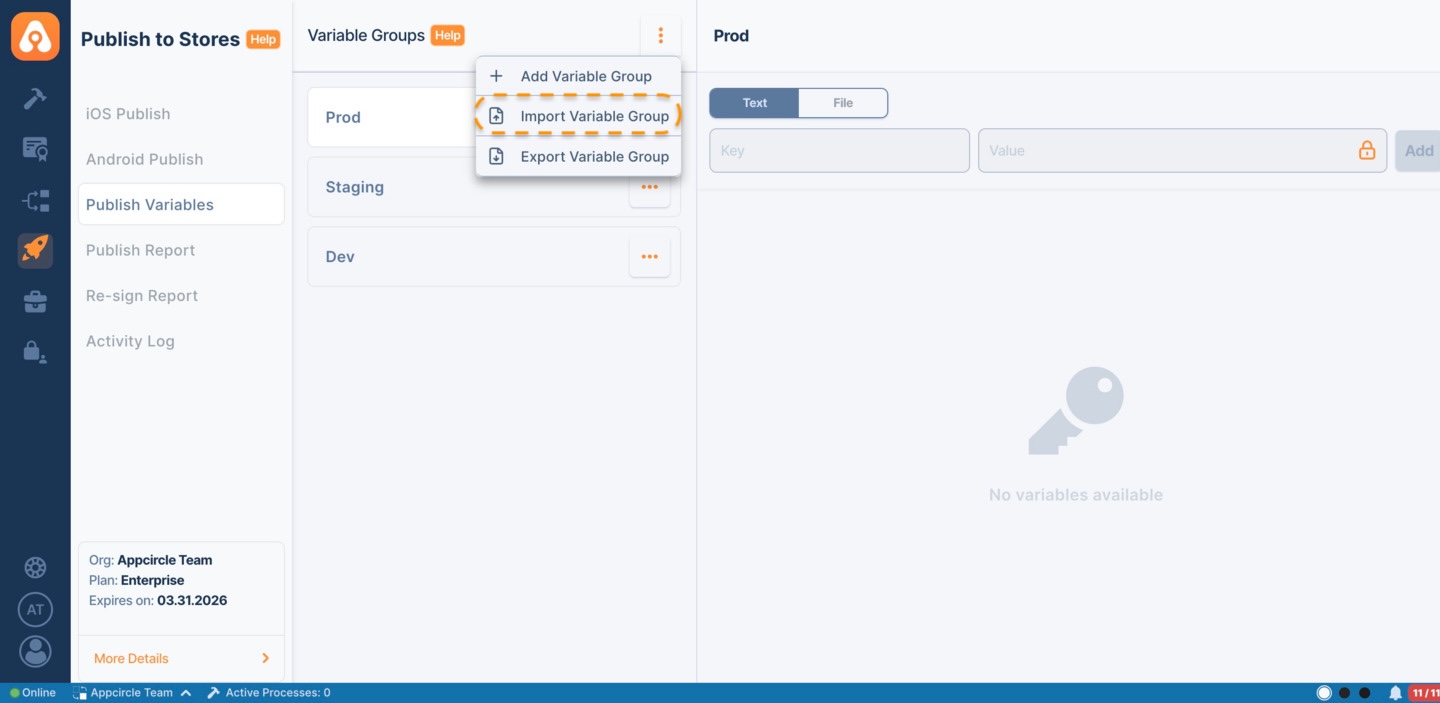
To import variable groups, click on the three dots icon next to Variable Groups and select Import Variable Group.
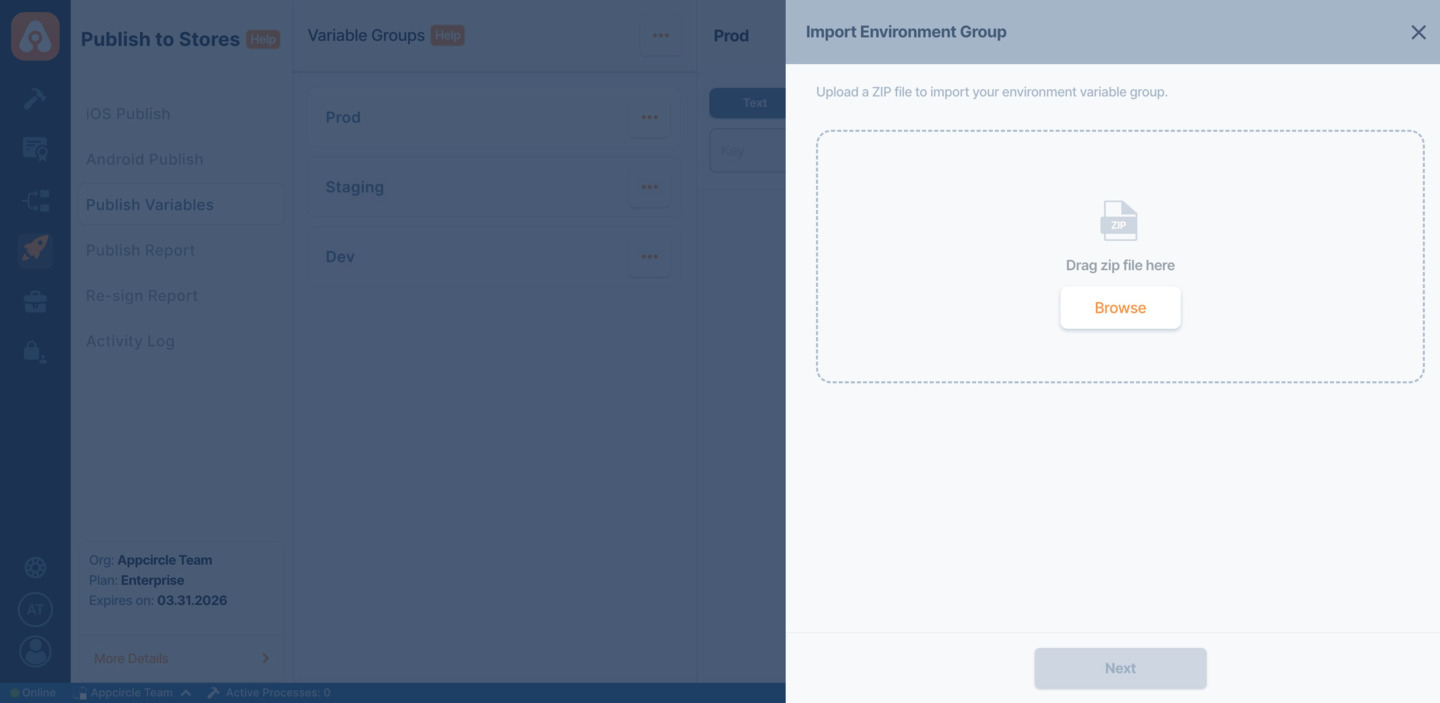
In the import flow:
- Upload a
.zipfile that contains publish variable groups. - On the next screen, select the groups you want to import.
- Review the variables within each group before confirming.
If a variable group or variable already exists, it will be marked with an Exists tag.
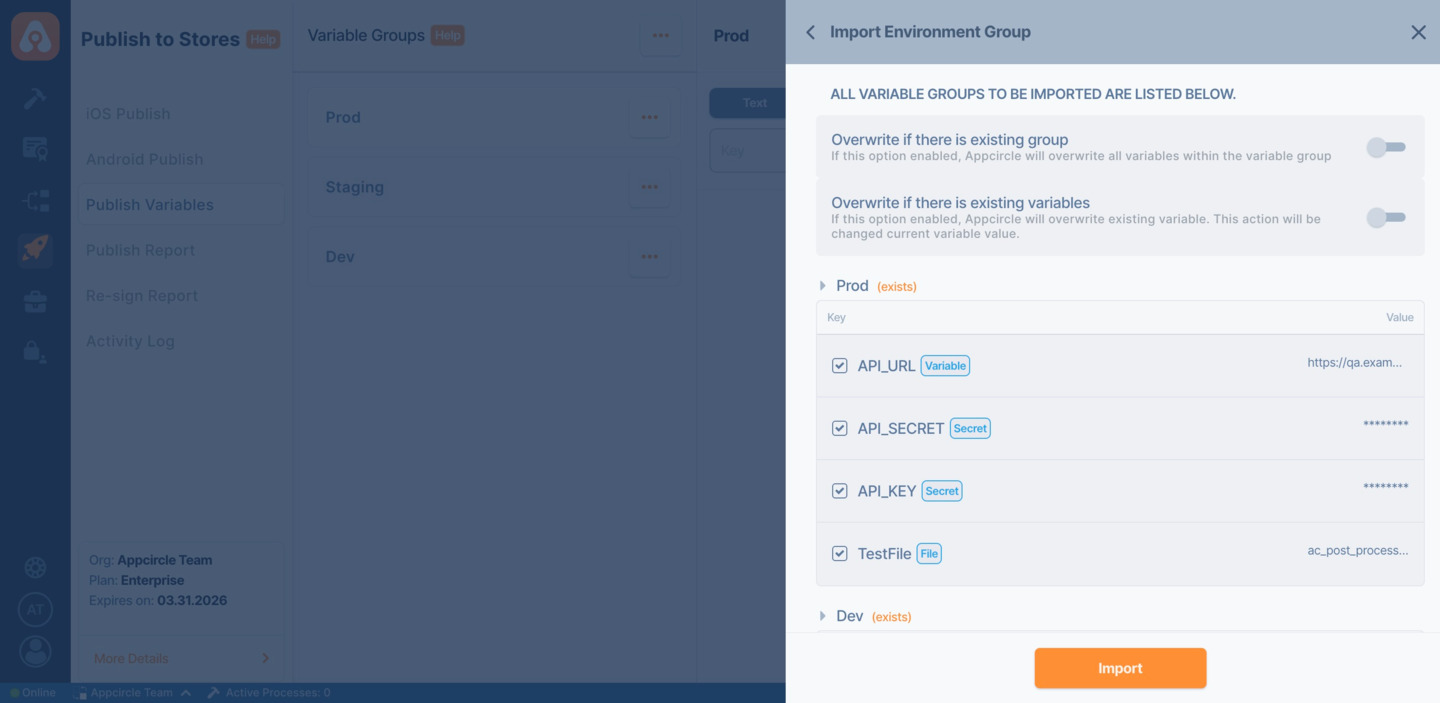
You can control how conflicts are handled using the following options:
- Overwrite if there is existing group: Replaces the entire group and all its variables.
- Overwrite if there is existing variables: Updates only the existing variables with new values.
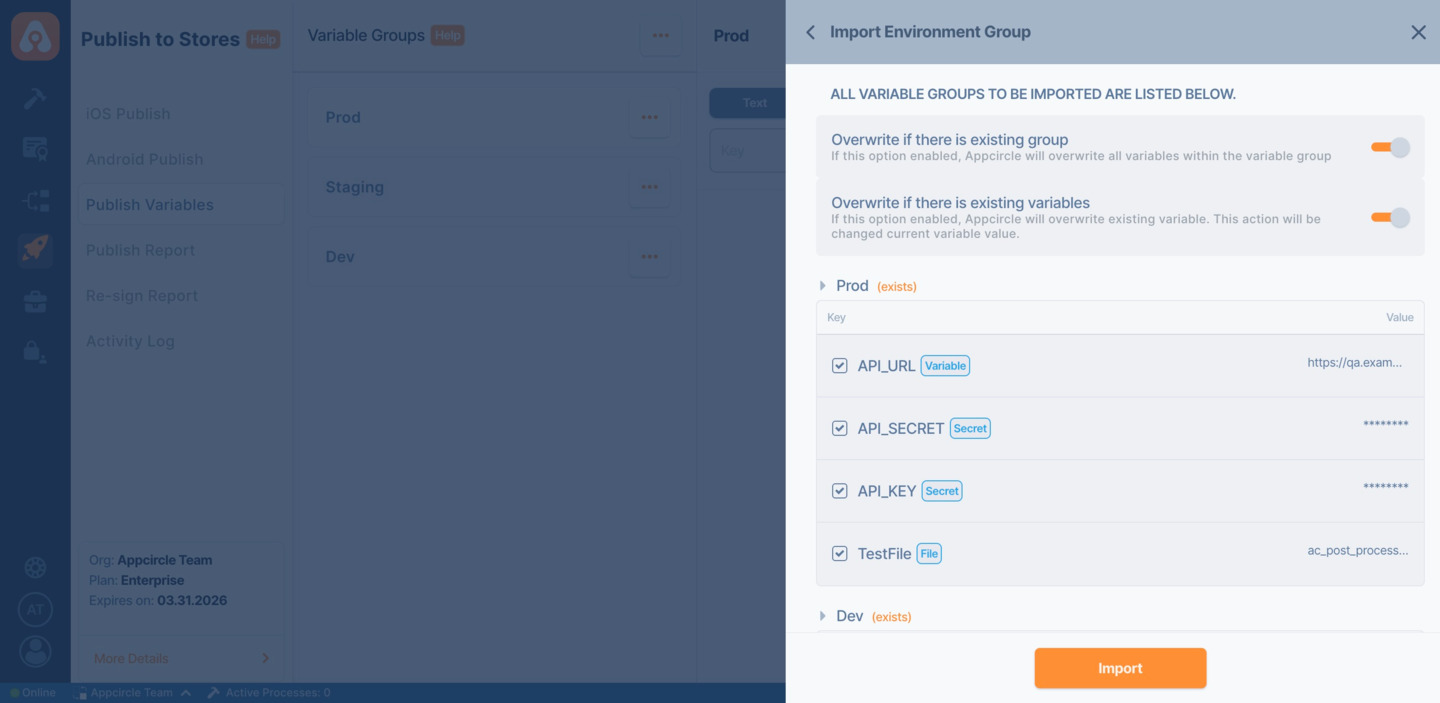
- Existing variables or groups will not be overwritten unless the corresponding overwrite option is enabled.
- File-based variables are included in the import process via the
.zipfile.
Sharing environment variable groups
You can share environment variable groups from the root organization to sub-organizations.
To share a variable group, click on the three dots icon next to a group and select Share.
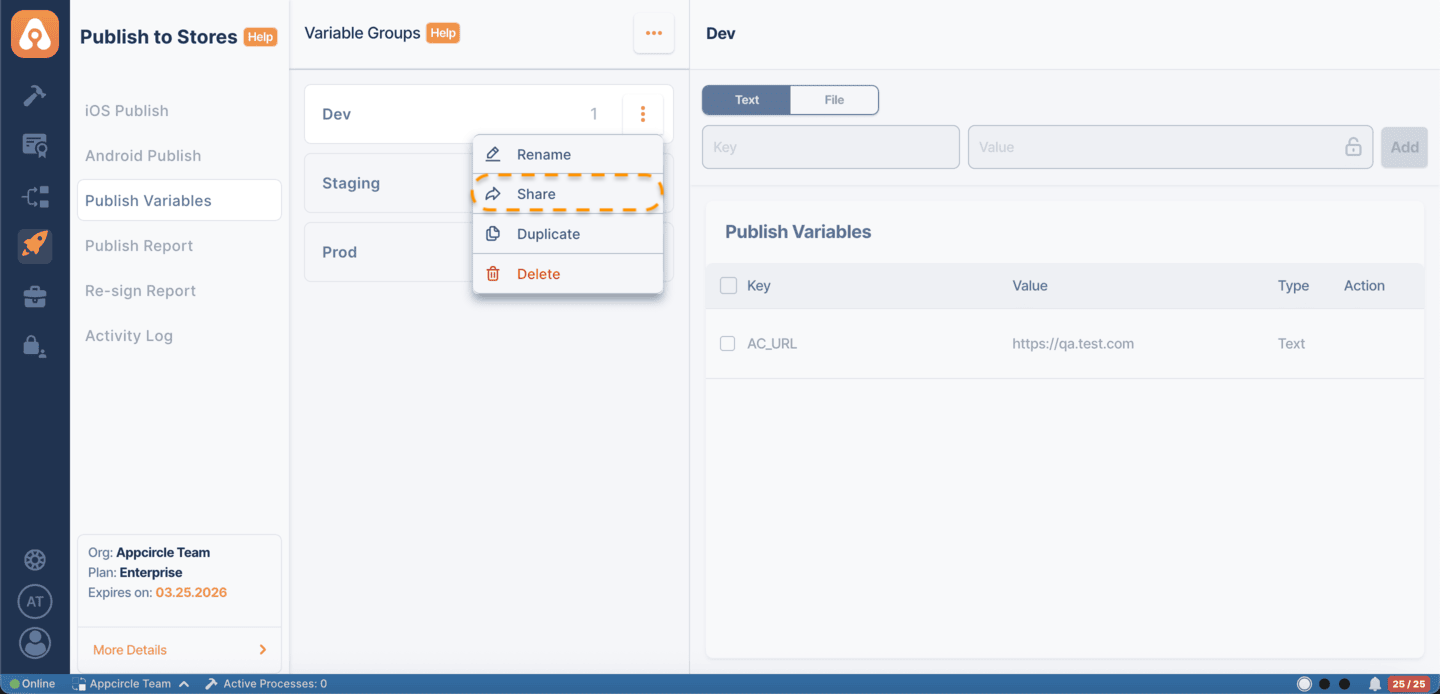
In the share modal:
- You can select specific sub-organizations to share the variable group with.
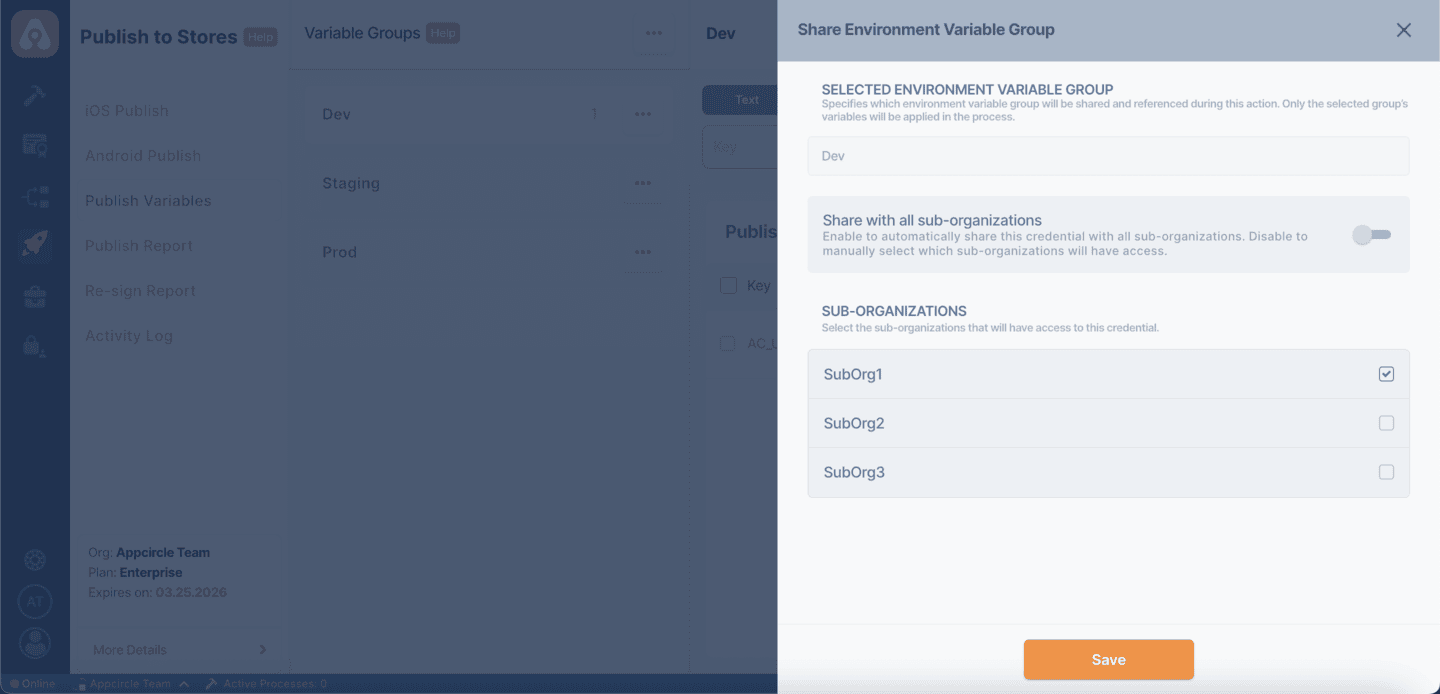
- Optionally, enable Share with all sub-organizations to automatically share the group with all existing and future sub-organizations.
After sharing:
- Shared variable groups will be marked with a Shared tag in the root organization.
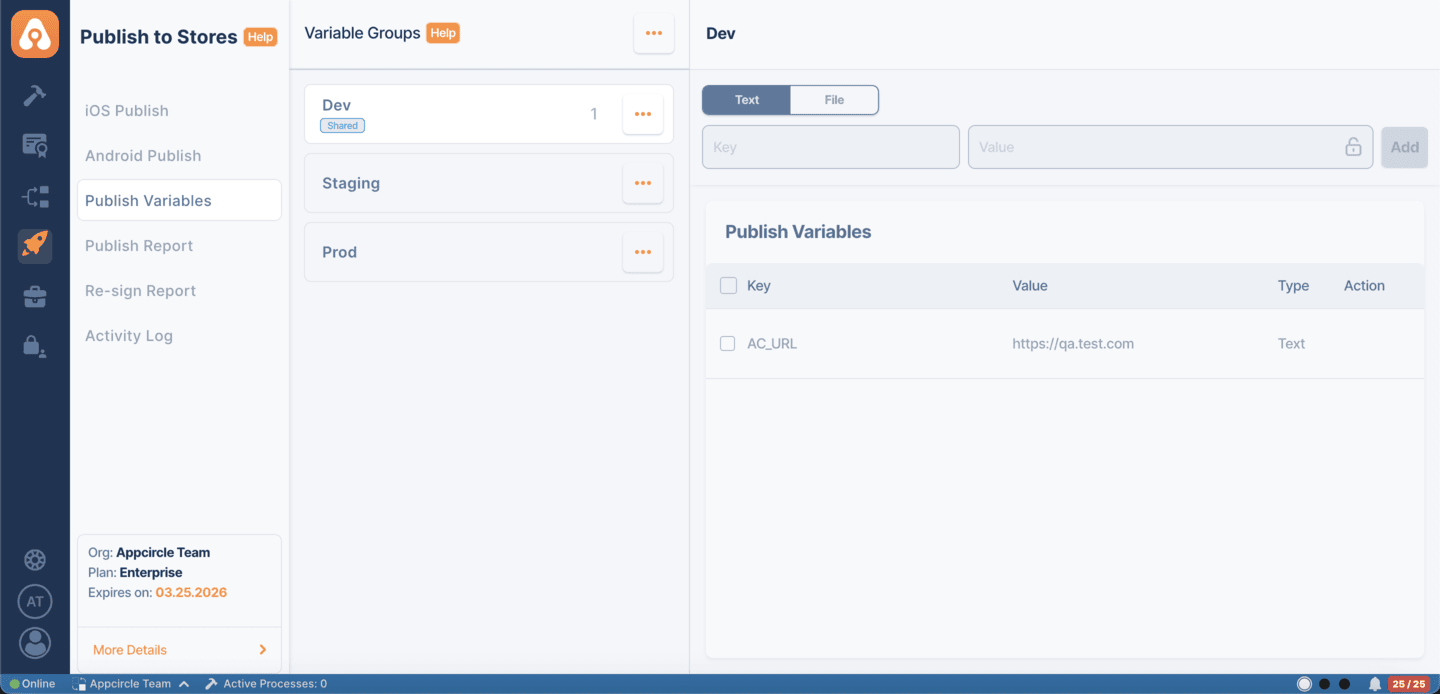
- In sub-organizations, these groups will appear with an Inherited tag.
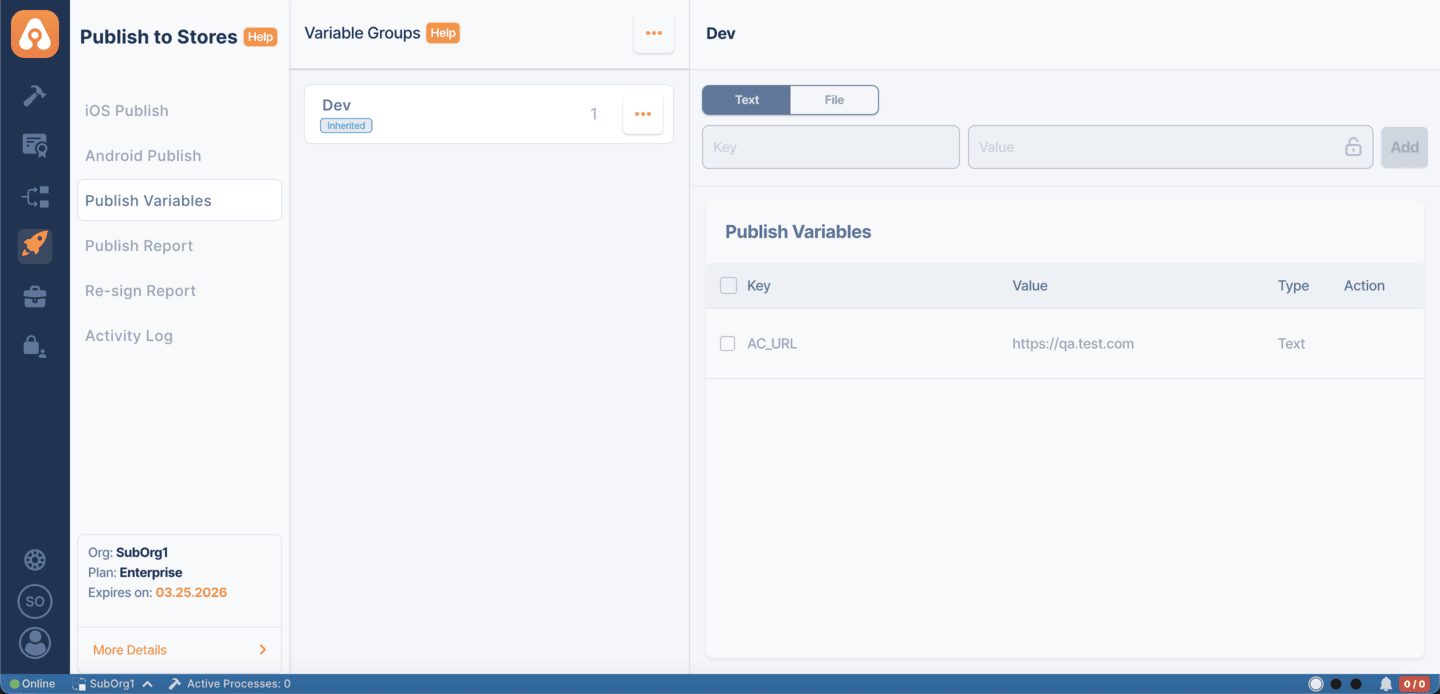
- Users in sub-organizations cannot edit, rename, or delete inherited variable groups.
- Any updates made in the root organization will be reflected in all shared sub-organizations.
Reserved Variables
There are some reserved variables that are automatically defined by Appcircle and can be used in the publish flow.
This documentation also includes additional output environment variables from publish flow steps that may be useful to users.
For any input or output variables not listed here, please refer to the "Input Variables" or "Output Variables" sections on each publish flow step’s documentation.
If there is an environment variable you believe should be included here, please contact us here.
Common Publish Reserved Variables
| Variable | Description |
|---|---|
| AC_RELEASE_NOTES | Specifies the release notes from the Build profile (if published from there) or from one of the Publish steps, to be published to the stores (Google Play, Huawei AppGallary, or App Store). |
| AC_ORGANIZATION_ID | Specifies the organization ID where the publish process starts. |
| AC_USER_ID | Specifies the user ID who started the publish process. |
| AC_USER_EMAIL | Specifies the email address of the user who started the publish process. |
| AC_STORE_NAME | Name of the store where the app is being published. |
| AC_PLATFORM_TYPE | Platform type (e.g., iOS:1, Android:2). |
| AC_UNIQUE_NAME | Unique name of the app (starts with com. for Android and iOS). |
| AC_PUBLISH_APP_VERSION | Version of the app being published (e.g., 1.0.1). |
| AC_PUBLISH_APP_VERSION_ID | App version ID being published on Appcircle. |
| AC_PUBLISH_APP_VERSION_CODE | Version code of the app being published. |
| AC_APP_EXPIRES_ON | Expiration date of the signed application. The date format is as follows: 2025-12-31T08:43:29Z |
| AC_APP_VERSION_NAME | Name of the app version being published. |
| AC_STORE_CREDENTIAL_ID | ID of the store credential where the app is being published. |
| AC_PUBLISH_PROFILE_ID | Specifies the profile ID who started the publish process on Appcircle. |
| AC_TASK_ID | Task ID associated with the publish process on Appcircle. |
| AC_PUBLISH_ID | Publish ID on Appcircle. |
| AC_PUBLISH_STEP_ID | Publish step ID on Appcircle. |
| AC_RESOURCE_ID | Resource ID used in the publishing process on Appcircle. |
| AC_ORGANIZATION_POOL_ID | Pool ID of the organization where the publish process starts. |
| AC_SOURCE_ID | Source ID of the process (e.g., Publish). |
| AC_MODULE_NAME | Name of the module in the process (e.g., Publish). |
| AC_PUBLISH_PROFILE_NAME | Specifies the Appcircle profile name who started the publish process. |
| AC_PUBLISH_STEP_NAME | Name of the publish flow step being run. |
| AC_PUBLISH_FLOW_NAME | Name of the publish workflow being run. |
| AC_PUBLISH_STEPS_STATUS | Provides detailed information about the status of the publish steps executed so far. Steps that are disabled will not appear in this environment variable. The JSON output for executed steps includes the following fields: - StepName: The name of the executed step. - StepId: The unique ID of the executed step. - StepStatus: The status of the step. Possible values: Success, Warning, Failed, NotStarted, or Stopped. - Duration: The time taken to complete the step, represented in seconds (e.g., 0.0000000). - StartDate: The start time of the step, formatted as an ISO 8601 timestamp (e.g., 2024-12-13T15:45:59.6426984Z). - FinishDate: The completion time of the step, also formatted as an ISO 8601 timestamp (e.g., 2024-12-13T15:45:59.6426984Z). For additional details and instructions on how to format this output for readability, refer to the How can I print the status of publish steps with detailed information? documentation. |
| AC_APP_FILE_URL | URL of the app file being published. |
| AC_APP_FILE_NAME | Name of the app file being published (with file extension). |
| AC_STACK_TYPE | The type of software stack used during the publishing process, such as Xcode, Gradle, etc. Please follow the necessary mapping values below: - App Store = 12 - TestFlight = 10 - Alpha = 0 - Beta = 1 - Production = 2 - Internal = 3 |
| AC_AUTHORIZATION | (Removed, redundant) |
| AC_PURPOSE | The intended purpose of the app, detailing its functionality or target audience. |
| AC_PUBLISH_ENVIRONMENT_VARIABLE_IDS | A list of environment variable identifiers used during the app publishing process, ensuring that the correct configuration is applied. |
User can use AC_RELEASE_NOTES environment variable, if the apk, aab or ipa files comes from Build module.
Marketplace Reserved Variables
Huawei AppGallery
| Variable | Description |
|---|---|
| AC_HUAWEI_APP_ID | The unique identifier assigned to the application registered in the Huawei AppGallery for integration purposes. |
| AC_API_KEY | A secret key used by Appcircle to authenticate API requests and provide secure access to third-party services, such as app stores. |
| AC_API_KEY_FILE_NAME | The name of the file that stores the API key, used for secure access during integration. |
| AC_GEM_FILE | The configuration or dependency file for Ruby's gem package manager, used in the Appcircle build process. |
| AC_PLUGIN_FILE | The file containing plugins or extensions for Appcircle, used to extend functionality during the build or distribution process. |
| AC_MARKETPLACE_TYPE | Specifies the type of app marketplace, such as Google Play, App Store, or Huawei AppGallery, where the app will be distributed. |
| AC_FASTFILE_CONFIG | Configuration file for Fastlane’s Fastfile, used to automate app release and build processes in Appcircle. |
Google Play Store
| Variable | Description |
|---|---|
| AC_RELEASE_STATUS | Represents the current release status of the application, indicating whether the app is in development, in testing, or has been released to a specific marketplace. |
| AC_APP_FILE_CONFIG | Configuration settings related to the app's file management, including details about file formats, paths, and settings required during the build or release process. |
| AC_API_KEY | A secure key used to authenticate API requests and authorize access to specific Appcircle services. |
| AC_API_KEY_FILE_NAME | The name of the file that contains the API key, typically used for secure integration with external services. |
| AC_MARKETPLACE_TYPE | Defines the app marketplace type, such as Google Play, Apple App Store, or Huawei AppGallery, where the app is distributed. |
App Store Connect
| Variable | Description |
|---|---|
| AC_API_KEY_FILE_NAME | The name of the file that contains the App Store Connect API key, used for authenticating App Store Connect integrations. |
| AC_API_KEY | A secure API key for accessing App Store Connect services. |
| AC_APPLE_APP_SPECIFIC_USERNAME | The Apple username specifically used for app-related tasks and authentication in App Store Connect. |
| AC_APPLE_APP_SPECIFIC_PASSWORD | The application-specific password for secure access to Apple services such as App Store Connect. |
| AC_APPLE_ID | The unique Apple ID associated with the developer account used to manage app releases and distribution. |
| AC_APPLE_STORE_SUBMIT_API_TYPE | Specifies the type of API used for submitting apps to the Apple App Store, typically defining the submission process. |
| AC_BUNDLE_ID | The unique identifier (Bundle ID) for the app, used for identifying the app in App Store Connect and during submission. |
| AC_MARKETPLACE_TYPE | Defines the marketplace type, such as Apple App Store, where the app will be distributed. |
| AC_XCODE_VERSION | The version of Xcode used for building and submitting the app to the App Store. |
| AC_FASTFILE_CONFIG | Configuration for Fastlane’s Fastfile, used to automate the app release and build process. |
| AC_SCREEN_SHOT_LIST | A list of app screenshots required for submission to the App Store, showcasing the app's interface and functionality. |
| AC_APP_PREVIEW_LIST | A list of app preview videos required for submission to the App Store, highlighting the app's features. |
| AC_METADATA_LOCALIZATION_LIST | A list of metadata localizations for the app, containing translated descriptions, keywords, and other localized content for different regions. |
Microsoft Intune
| Variable | Description |
|---|---|
| AC_ORGANIZATION_NAME | The name of the organization or team that owns the app and is associated with the Apple Developer account. |
| AC_BUNDLE_ID | The unique identifier (Bundle ID) for the app, used for identifying the app in App Store Connect and during submission. |
| AC_ICON_RESOURCE_REFERENCE_ID | The reference ID for the app's icon resource, used to associate the correct icon during the build and submission process. |
| AC_MARKETPLACE_TYPE | Defines the marketplace type, such as Apple App Store, where the app will be distributed. |
| AC_XCODE_VERSION | The version of Xcode used for building and submitting the app to the App Store. |
iOS Publish Reserved Variables
| Variable | Description |
|---|---|
| AC_XCODE_LIST_DIR | Specifies the Xcode folder list directory. |
| AC_XCODE_VERSION | Specifies the Xcode version. |
| AC_VALIDATION_CONDITION | Used for the Get Approval from TestFlight. TestFlight's internalBuildState and externalBuildState will be checked according to the selection. |
| AC_SUCCESS_STATUSES | You can customize Acceptable/Succeeded App Store statuses for your app. |
| AC_STACK_TYPE | App Store or TestFlight stages. |
| AC_APP_FILE_URL | The URL where the IPA file for the app is hosted, used for distribution or submission purposes. |
| AC_APP_FILE_NAME | The name of the IPA file that will be uploaded to the app store for submission. |
| AC_APPLE_STORE_SUBMIT_API_TYPE | Specifies the type of API used for submitting apps to the Apple App Store, typically defining the submission process. |
Android Publish Reserved Variables
| Variable | Description |
|---|---|
| AC_RELEASE_STATUS | Used for the Send to Google Play step. Allows you to specify draft or completed app statuses on the Google Play Console. |
| AC_STACK_TYPE | Used for the Send to Google Play step. Specifies the release track to send the binary. After the binary is uploaded, you can release it from the Google Play. |
| AC_TRACK_TO_CHECK | Used for the Get Approval from Google Play step. It's recommended to check the track that you've sent the app in previous steps. |
| AC_ACCEPTED_STATUSES | Used for the Get Approval from Google Play step. Statuses of completed,inProgress,draft,halted can be used. |
| AC_HUAWEI_APP_ID | Used for the Send to Huawei AppGallery step. Huawei requires Huawei App ID to be sent app to Huawei App Gallery. |
| AC_APP_FILE_URL | The URL where the APK file for the Android app is hosted, used for distribution or submission purposes. |
| AC_APP_FILE_NAME | The name of the APK file that will be uploaded to the app store for submission. |
| AC_ICON_RESOURCE_REFERENCE_ID | The reference ID for the app's icon resource, used to associate the correct icon during the build and submission process. |
| AC_APP_ICON_URL | The URL of the app icon that will be displayed in the app store and on devices. |
| AC_APP_ICON_FILE_NAME | The name of the file containing the app icon, used during the app submission process. |
FAQ
How to change environment variable and exchange it between steps?
In the Appcircle Publish to Stores module, the steps within a Publish flow operate independently. This means that each step is executed in a separate, clean runner environment. This feature allows steps to run independently and individually. Therefore, to exchange environment variables between steps, the modified ENV value needs to be saved as an output variable.
Below is an example of how this can be done. Once an ENV variable is modified in a step and saved to the output direction, it will become accessible in another step.
- For the first step. Suppose we create a release note using the Publish Release Note Component during the build process. We then want to modify and use this release note during the Publish process.
Predefined Publish Variables can also be modified using this method; however, once the flow is completed, they will revert to their originally defined default values.
# Take AC_RELEASE_NOTES value
ac_build_release_notes="$AC_RELEASE_NOTES"

# Check the variable if it is null
if [ -z "$ac_build_release_notes" ]; then
  echo "Error: AC_RELEASE_NOTES variable was not determined or it is null."
  exit 1
else
  # Print current value
  echo "Before: $ac_build_release_notes"

  # Change release note value
  ac_build_release_notes="Release note changed\n New Release note prepared"

  # Print changed value
  echo -e "Changed: $ac_build_release_notes"

  # Write new env value AC_CHANGED_RELEASE_NOTES to .env file in output direction
  echo -e "AC_CHANGED_RELEASE_NOTES=\"${ac_build_release_notes}\"" >> $AC_OUTPUT_DIR/AC_OUTPUT.env
fi
- For the second step: We can now access this environment variable directly in another step.
echo "Print Changed Release Note Variable"
echo $AC_CHANGED_RELEASE_NOTES