Overview of Environment Variables
Creating environment variable groups
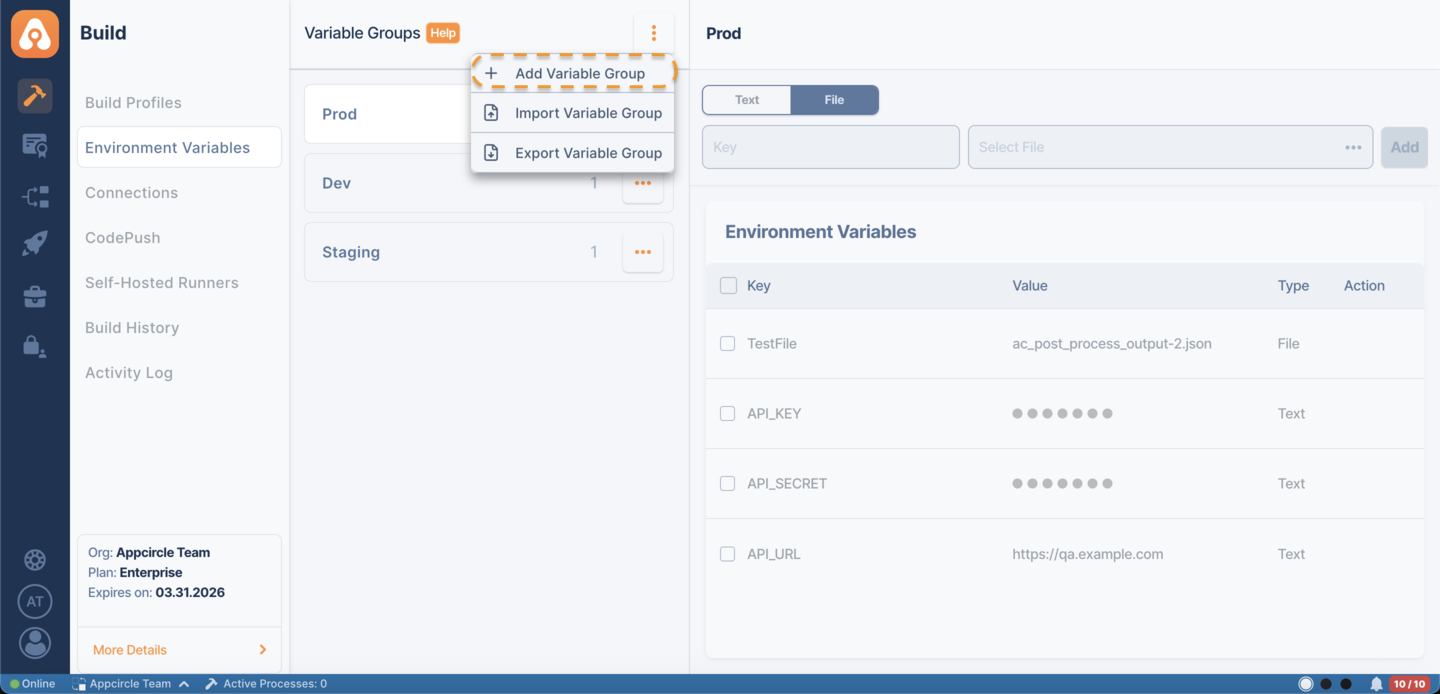
To create an environment variable group, select Environment Variables from the build module. Click on the orange ... icon and select 'Add Variable Group'. Then, enter the name of the group into the input box, and press Enter to create the group.
Adding key and text-based value pairs
To add an environment variable to the group, select the "Text" tab from the top and use the inputs below. Enter a key name, then enter the value for the key and press enter.
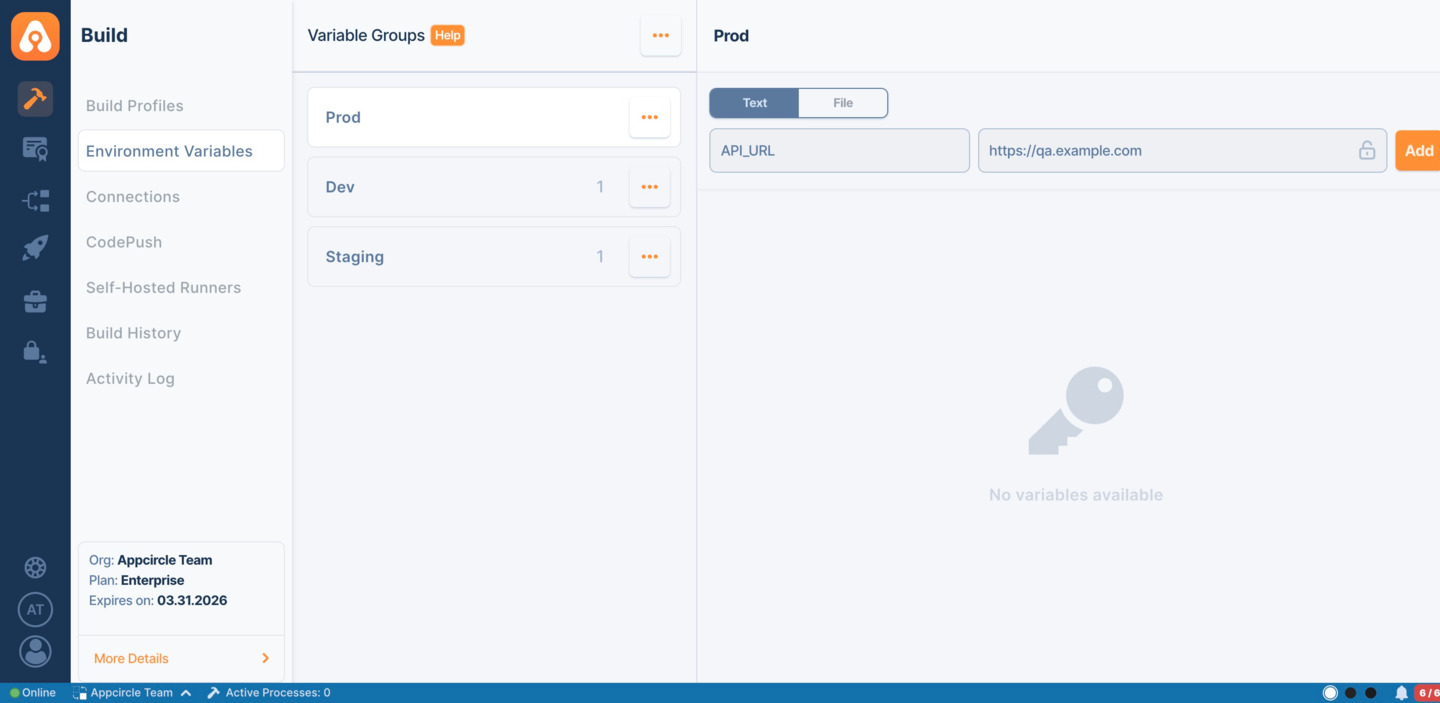
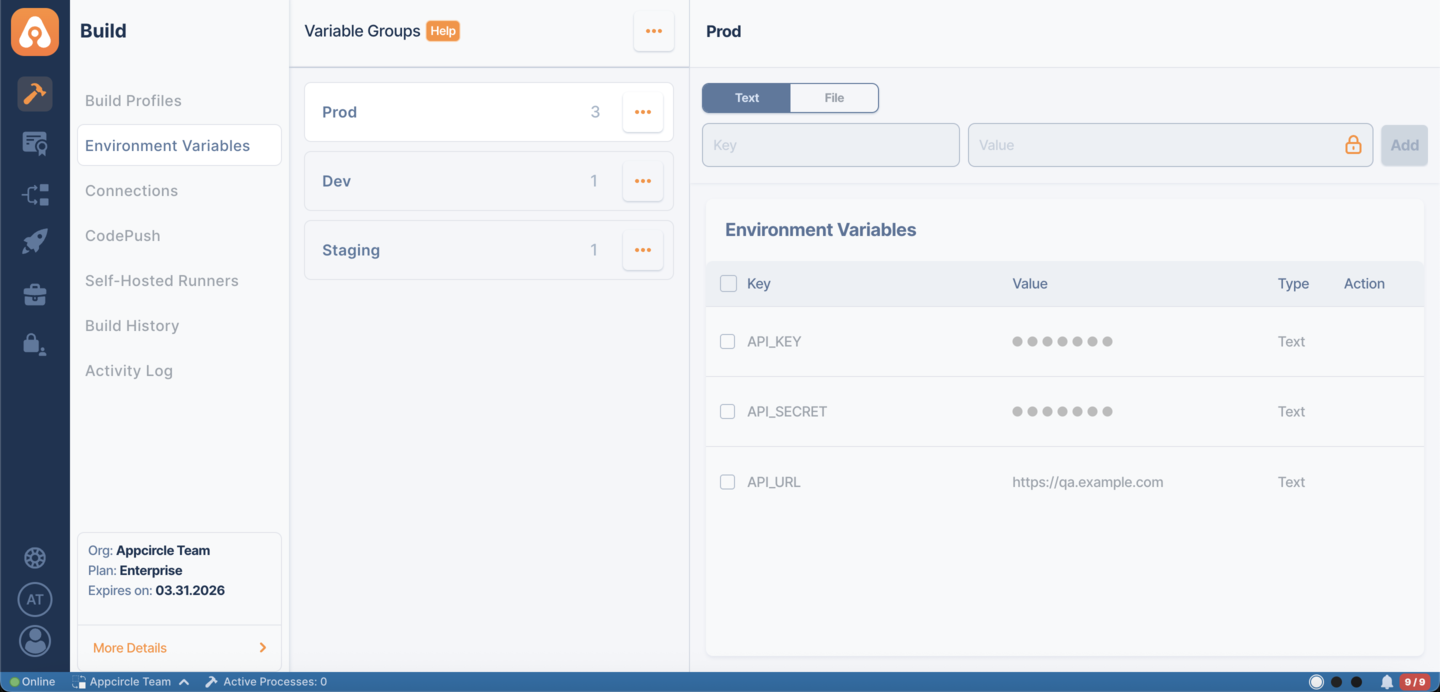
You can add as many environment variables as you need.
Variables that need to be secret can be hidden using the lock icon. Such variables cannot be viewed by the users during the build process.
Please note that some environment variables may need to be duplicated to be used in different groups for different purposes.
Adding files as environment variables
You can also add files as environment variables and use them in build workflows in the same way. They can be used for things like API-key based authentication in Firebase or for adding dSYM files.
To add a file, select the "File" tab from the top and enter a key name from the inputs below. Then select a file from the file browser that opens when you click the file field.
Then press add to upload the file.
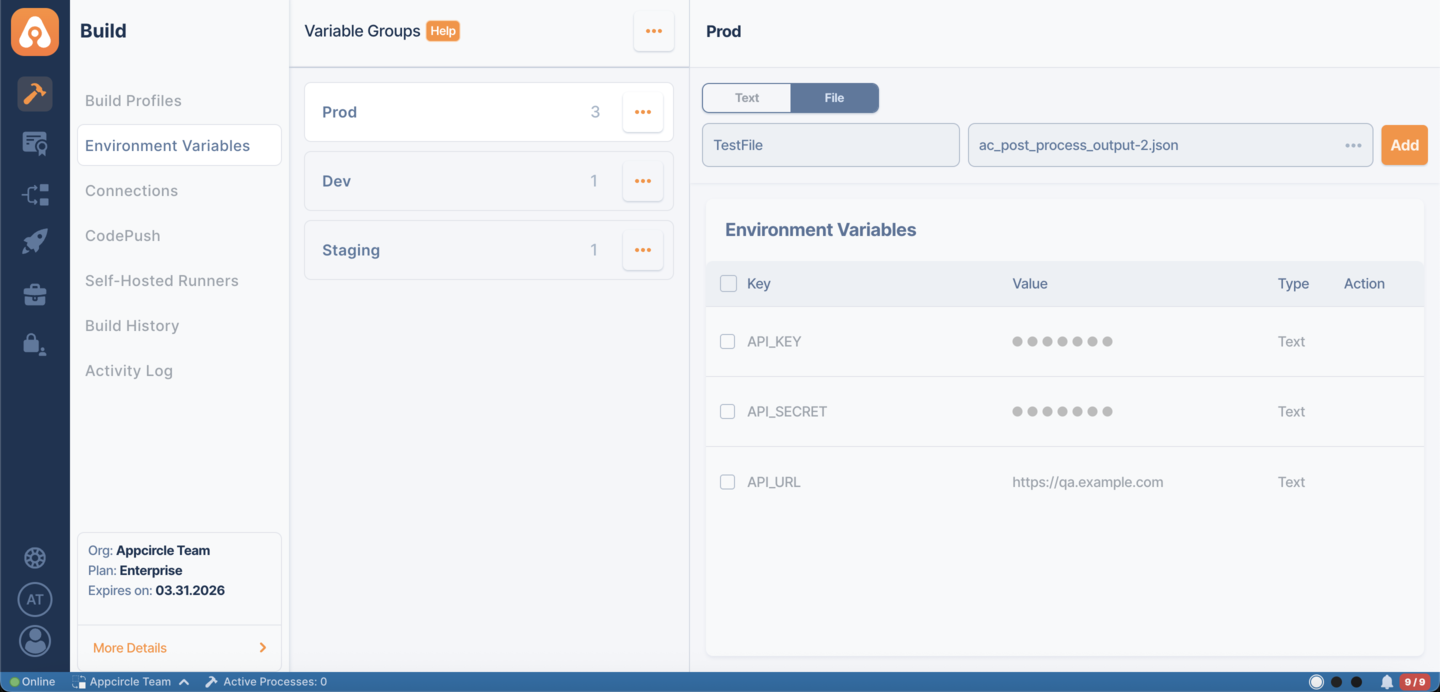
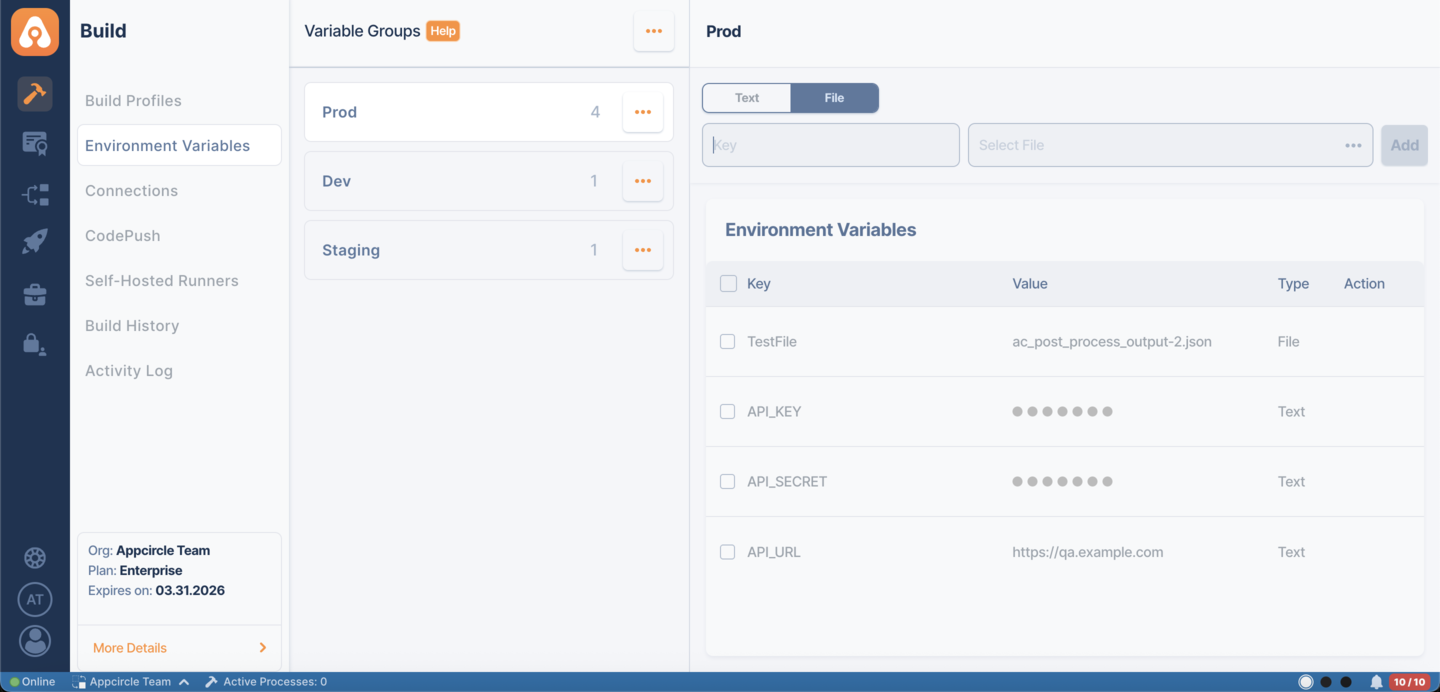
When you upload a file as an environment variable, file name is not preserved. The reason of this to prevent file name conflicts. You can upload different files with same name and can use their keys to refer them. You need to use your key to find the location of this file and then you can read the contents of this file.
You can edit encrypted variables by clicking the Edit option, just like text variables. The original value will not be displayed for security reasons; however, the updated value will be saved.
Exporting environment variable groups
You can export environment variable groups in bulk as a .zip file.
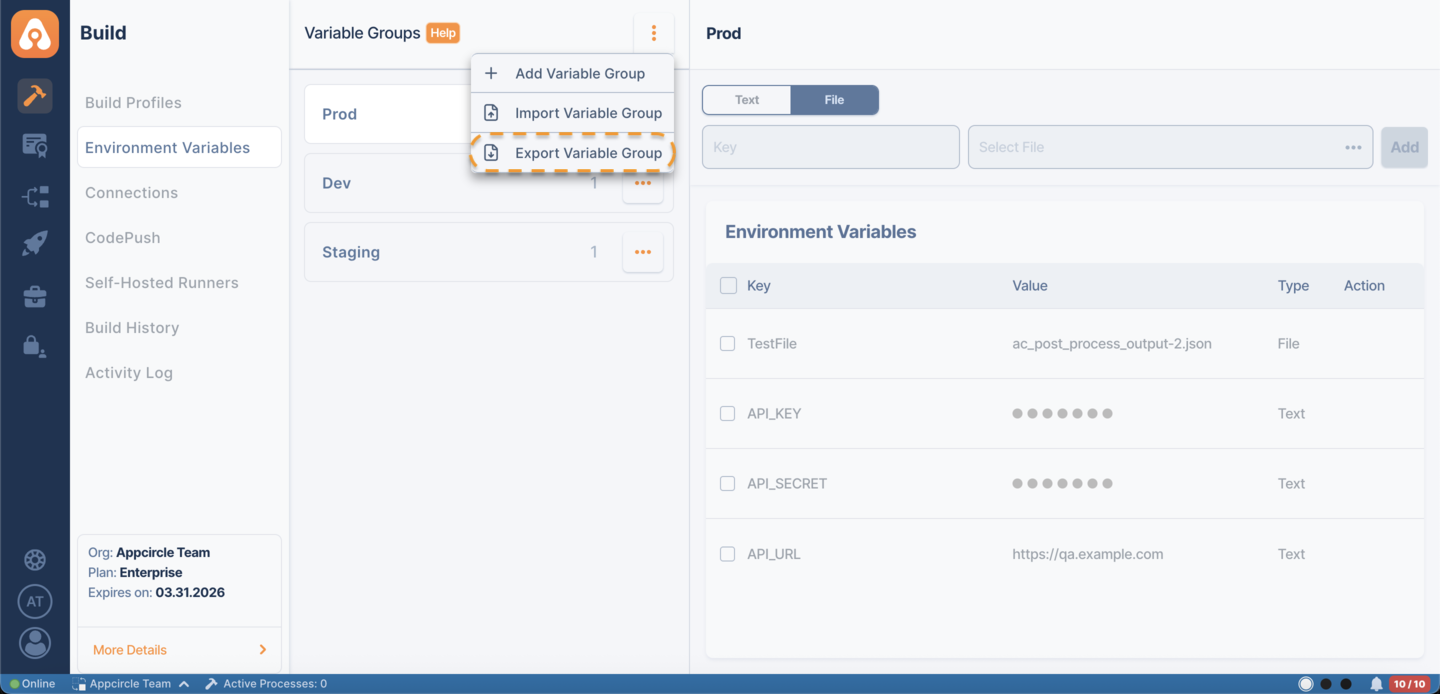
To export variable groups, click on the three dots icon next to Variable Groups and select Export Variable Group.
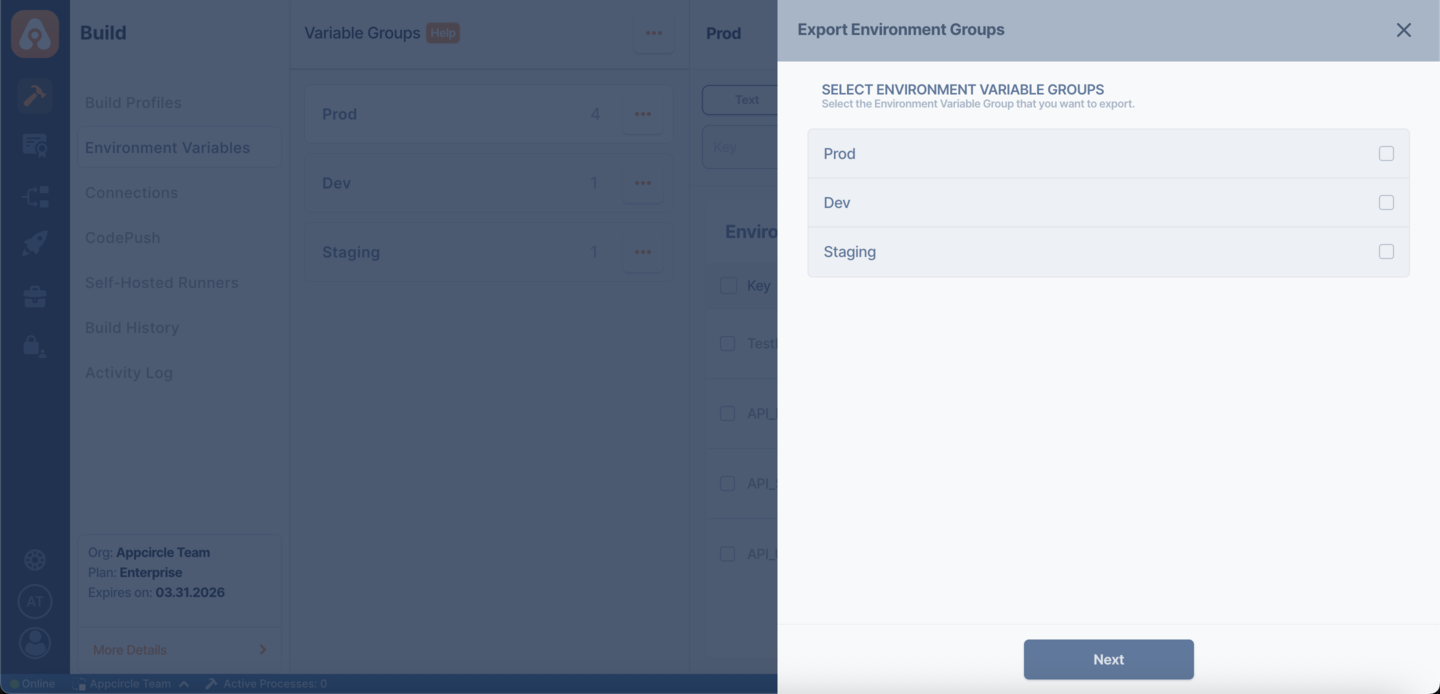
In the export modal:
- You can select one or more environment variable groups (e.g., Prod, Dev, Staging).
- All selected groups will be included in the exported file.
- The export will be downloaded as a
.zipfile.
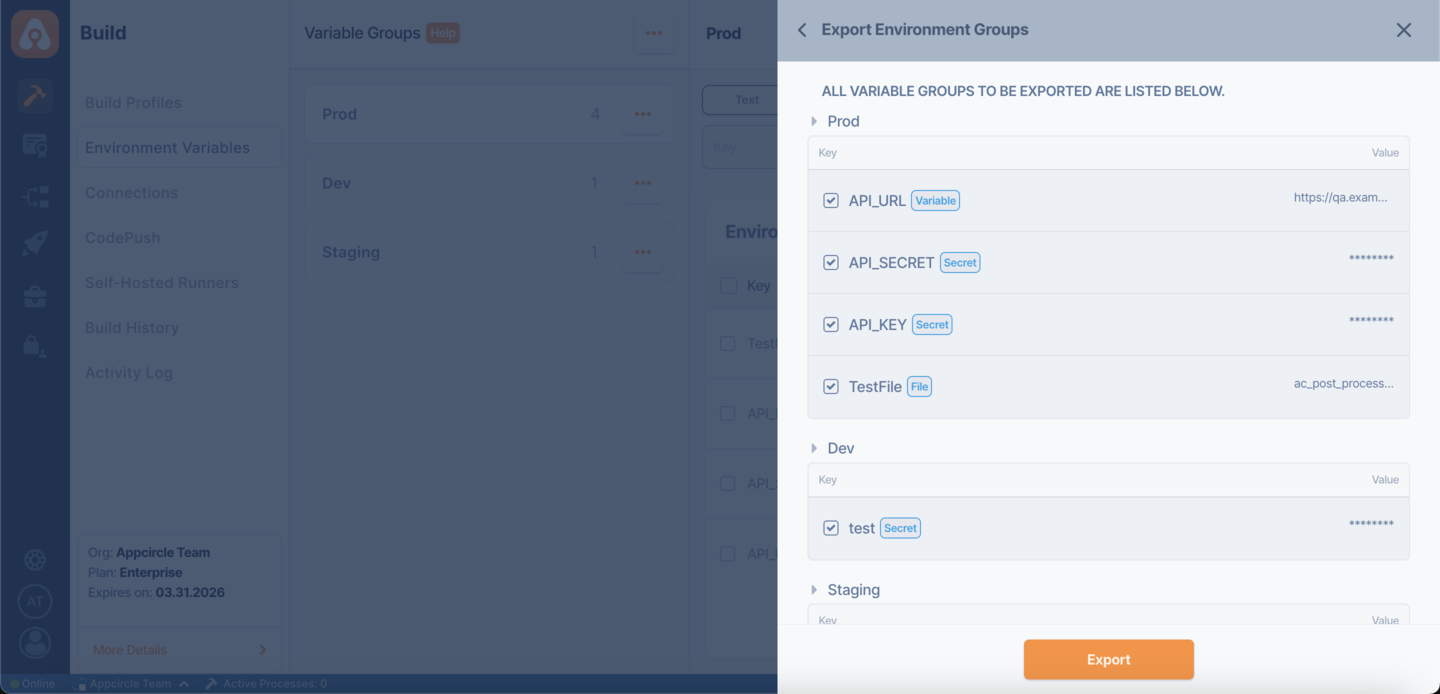
- Secret variables and file contents are not exposed directly for security reasons.
- Exporting multiple groups at once helps you back up or migrate configurations easily.
An example of environment variable group downloaded as a JSON file:
[
  {"Id":"8260f439-d074-4f10-9361-66fe96480904",
    "Name":"Prod",
    "Variables":
  [
    {"Key":"API_URL",
      "Value":"https://qa.example.com",
      "IsSecret":false,"IsFile":false},
    {"Key":"API_SECRET",
      "Value":"",
      "IsSecret":true,"IsFile":false},
    {"Key":"API_KEY",
      "Value":"",
      "IsSecret":true,"IsFile":false},
    {"Key":"TestFile",
      "Value":"ac_post_process_output-2.json",
      "IsSecret":false,"IsFile":true}]},
  {"Id":"03bc80ee-972d-4214-9963-a4bfa8fd2d1c",
    "Name":"Dev",
    "Variables":
  [{"Key":"test",
    "Value":"",
    "IsSecret":true,"IsFile":false}]},
  {"Id":"f71c685c-5844-4099-9561-a12e76f667bd",
    "Name":"Staging",
    "Variables":
    [{"Key":"test2",
      "Value":"",
      "IsSecret":true,"IsFile":false}]
  }]
As seen in the example above;
- if the isSecret value is
false, it has visible value - if the isSecret value is
trueor isFile value istrue, the key and the value will not be downloaded.
Importing environment variable groups
You can import environment variable groups in bulk using a .zip file.
To import variable groups, click on the three dots icon next to Variable Groups and select Import Variable Group.
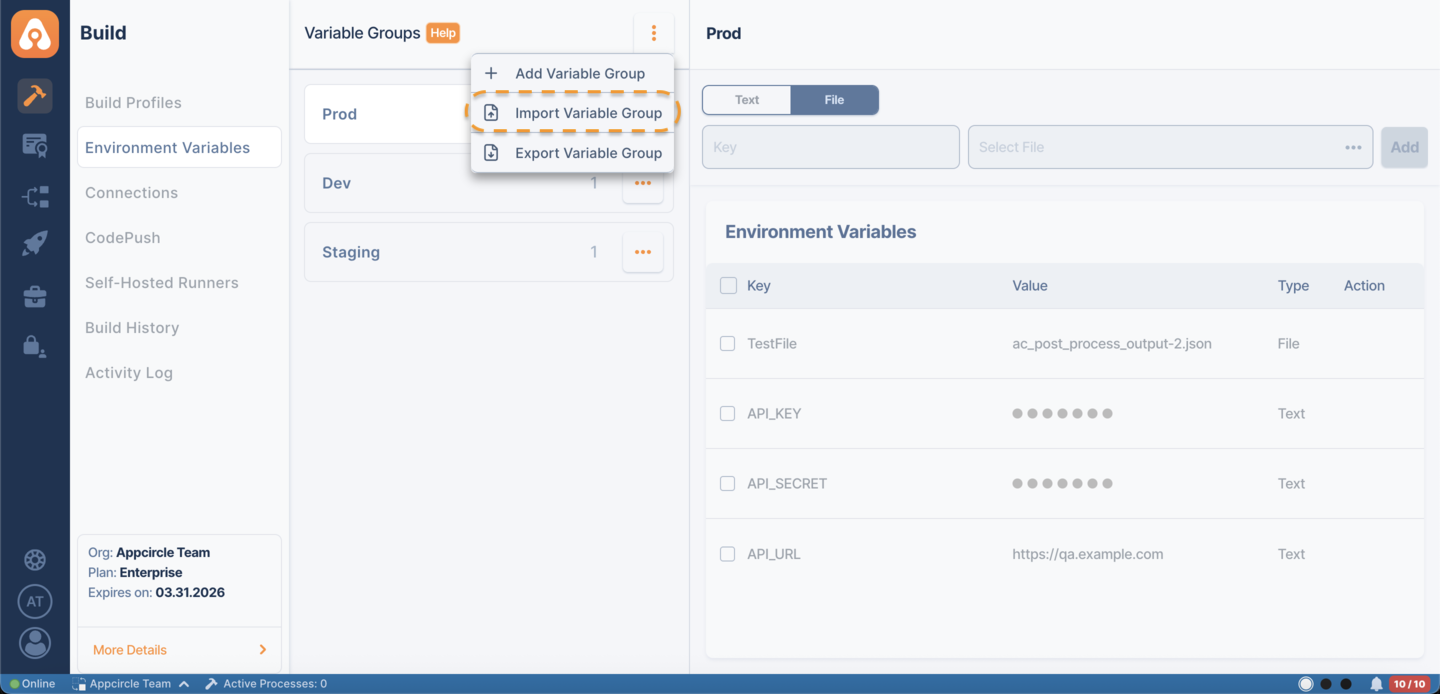
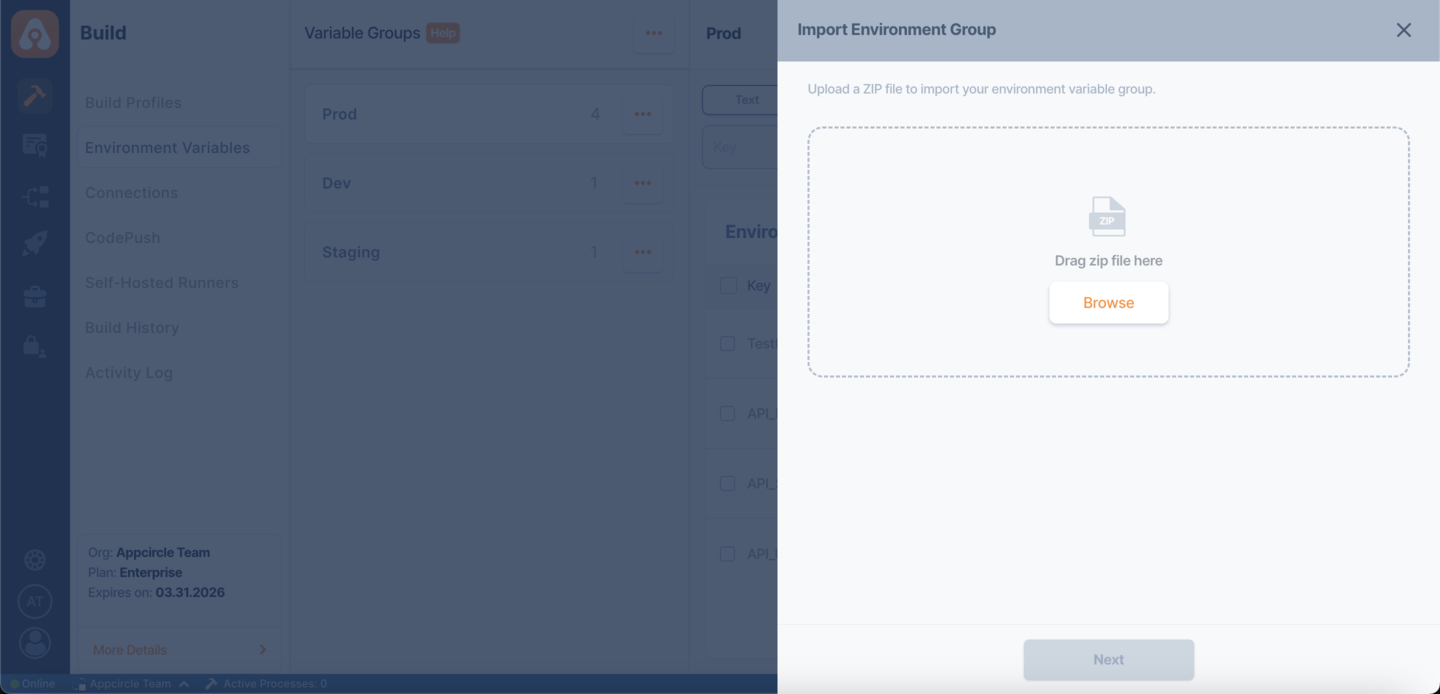
In the import flow:
- Upload a
.zipfile that contains environment variable groups. - On the next screen, select the groups you want to import.
- Review the variables within each group before confirming.
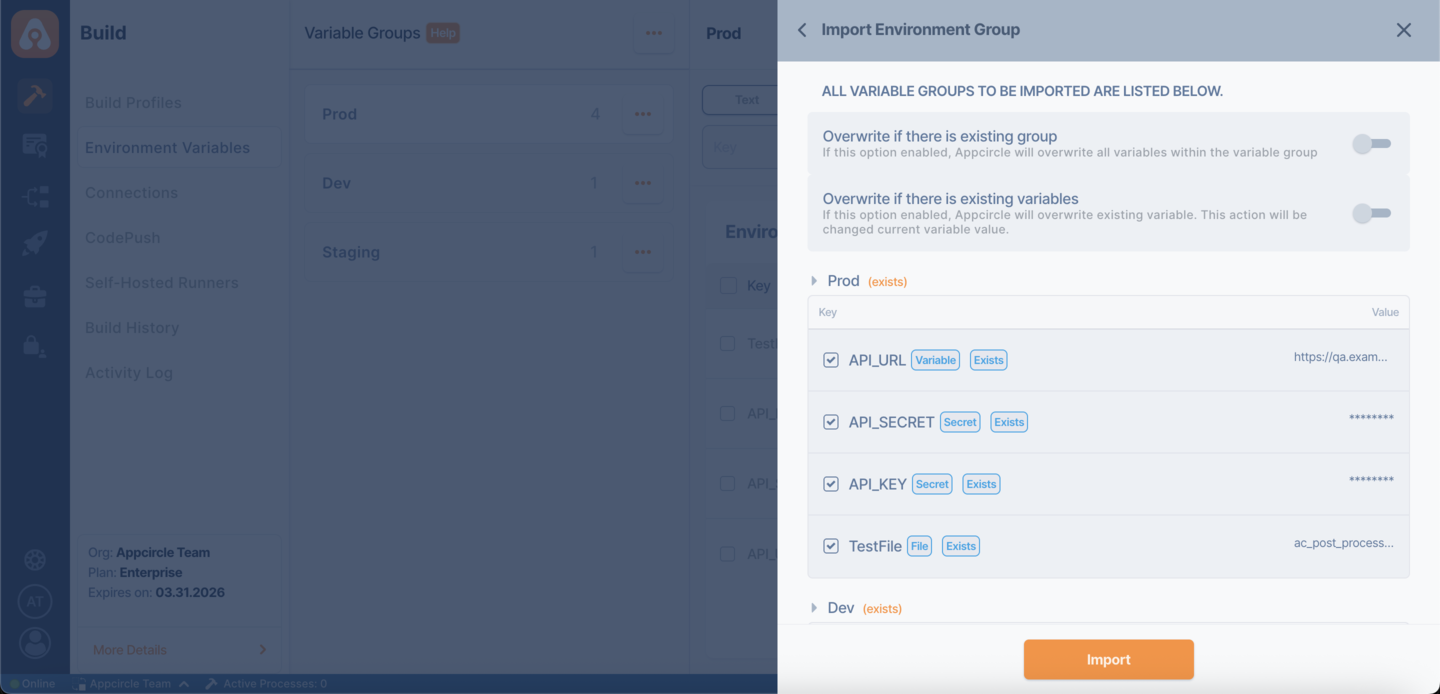
If a variable group or variable already exists, it will be marked with an Exists tag.
You can control how conflicts are handled using the following options:
- Overwrite if there is existing group: Replaces the entire group and all its variables.
- Overwrite if there is existing variables: Updates only the existing variables with new values.
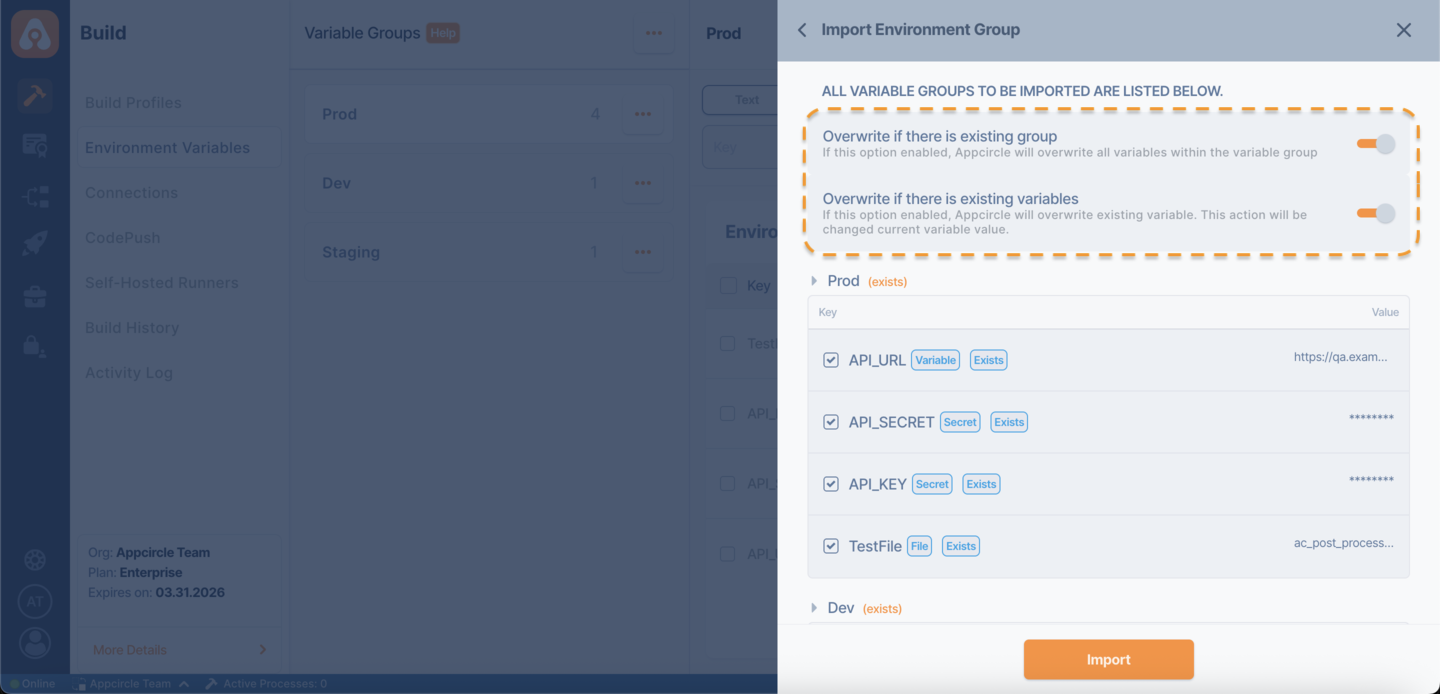
- Existing variables or groups will not be overwritten unless the corresponding overwrite option is enabled.
- File-based variables are included in the import process via the
.zipfile.
Sharing environment variable groups
You can share environment variable groups from the root organization to sub-organizations.
To share a variable group, click on the three dots icon next to a group and select Share.
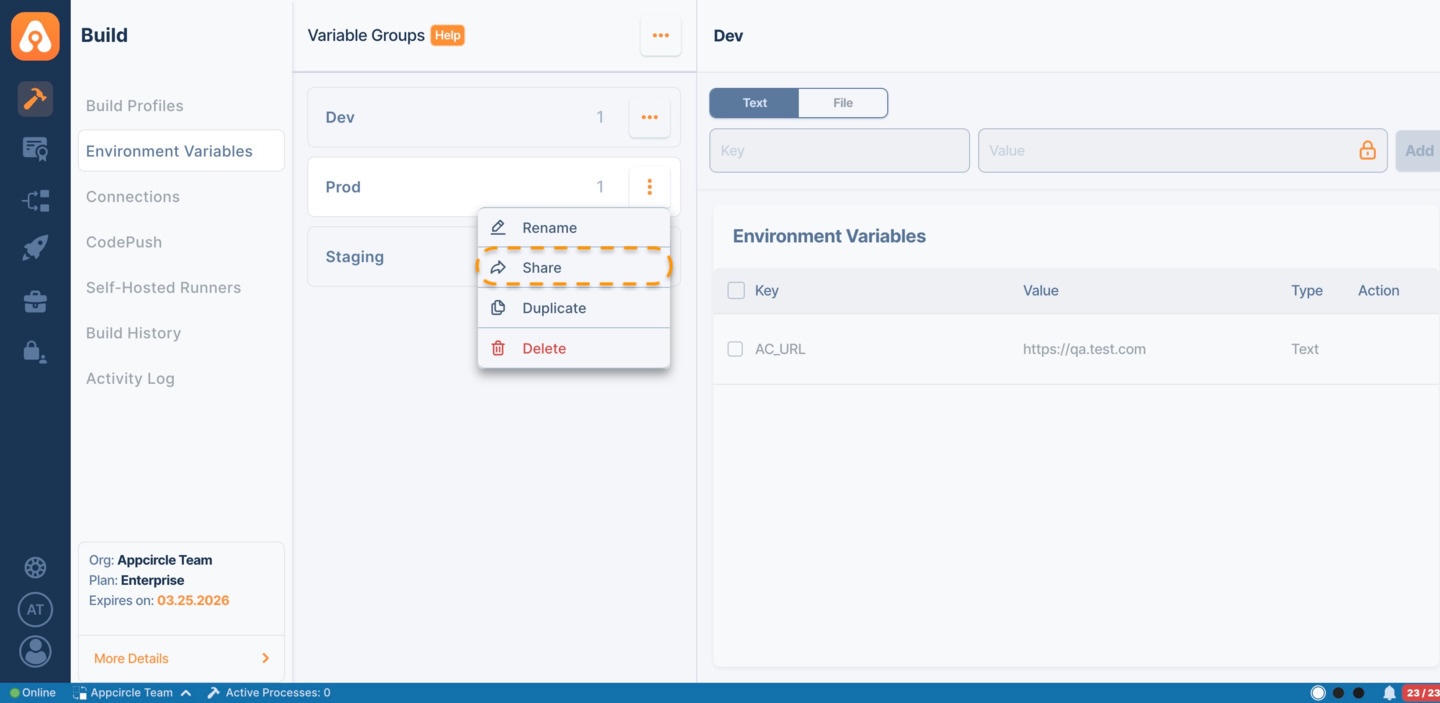
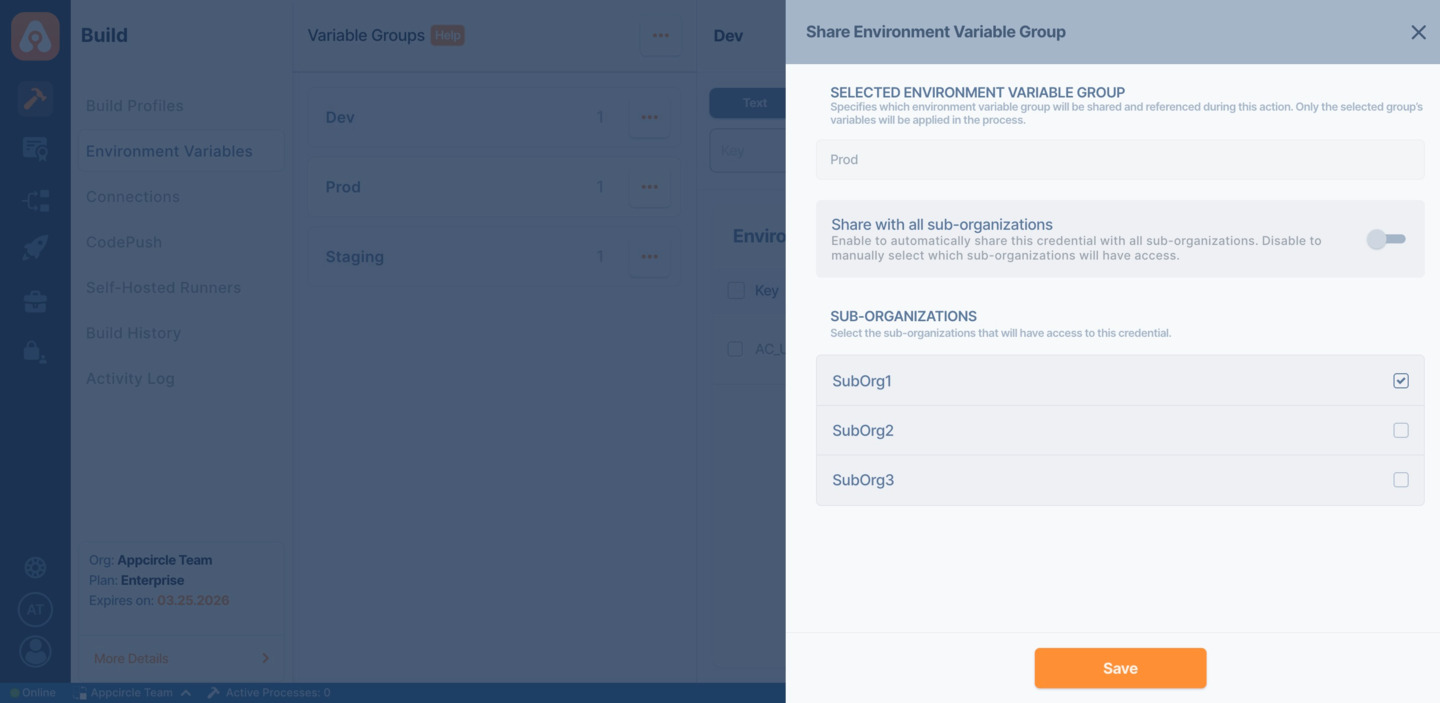
In the share modal:
- You can select specific sub-organizations to share the variable group with.
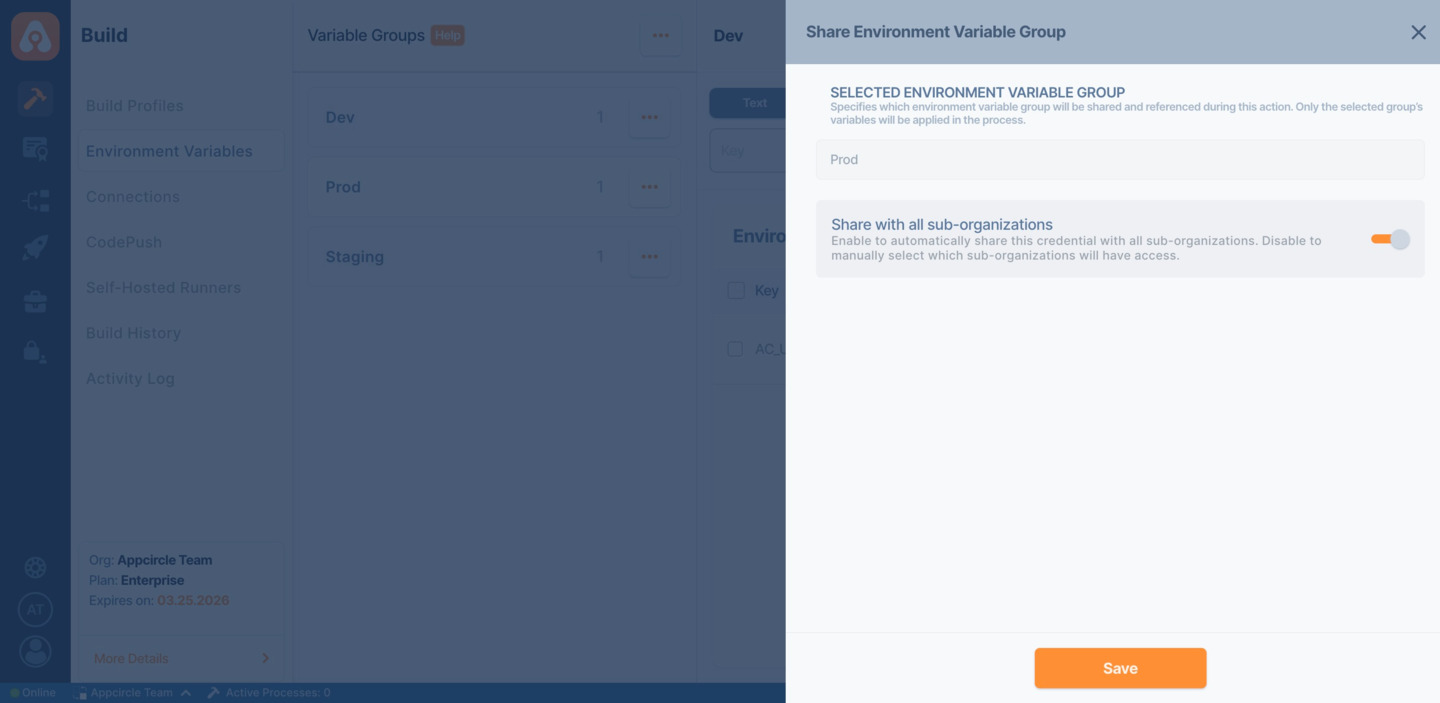
- Optionally, enable Share with all sub-organizations to automatically share the group with all existing and future sub-organizations.
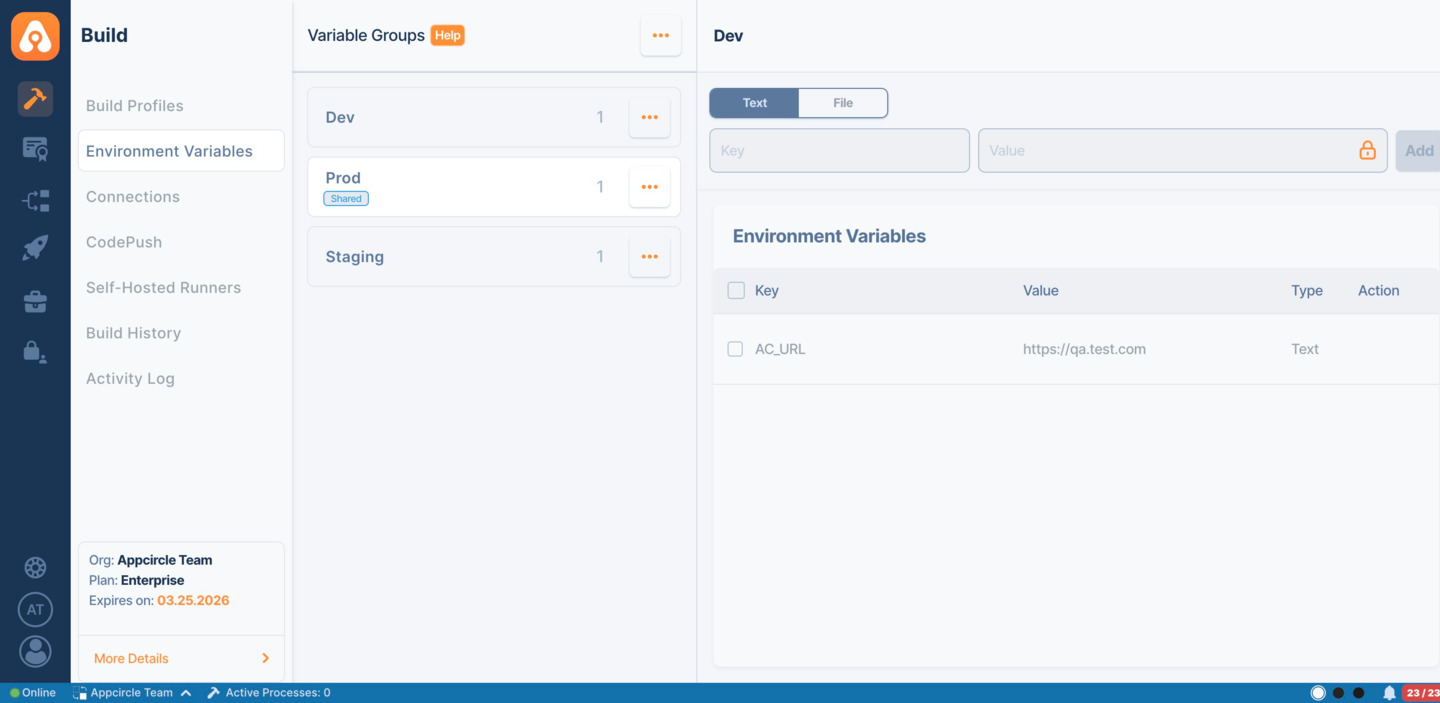
After sharing:
- Shared variable groups will be marked with a Shared tag in the root organization.
- In sub-organizations, these groups will appear with an Inherited tag.
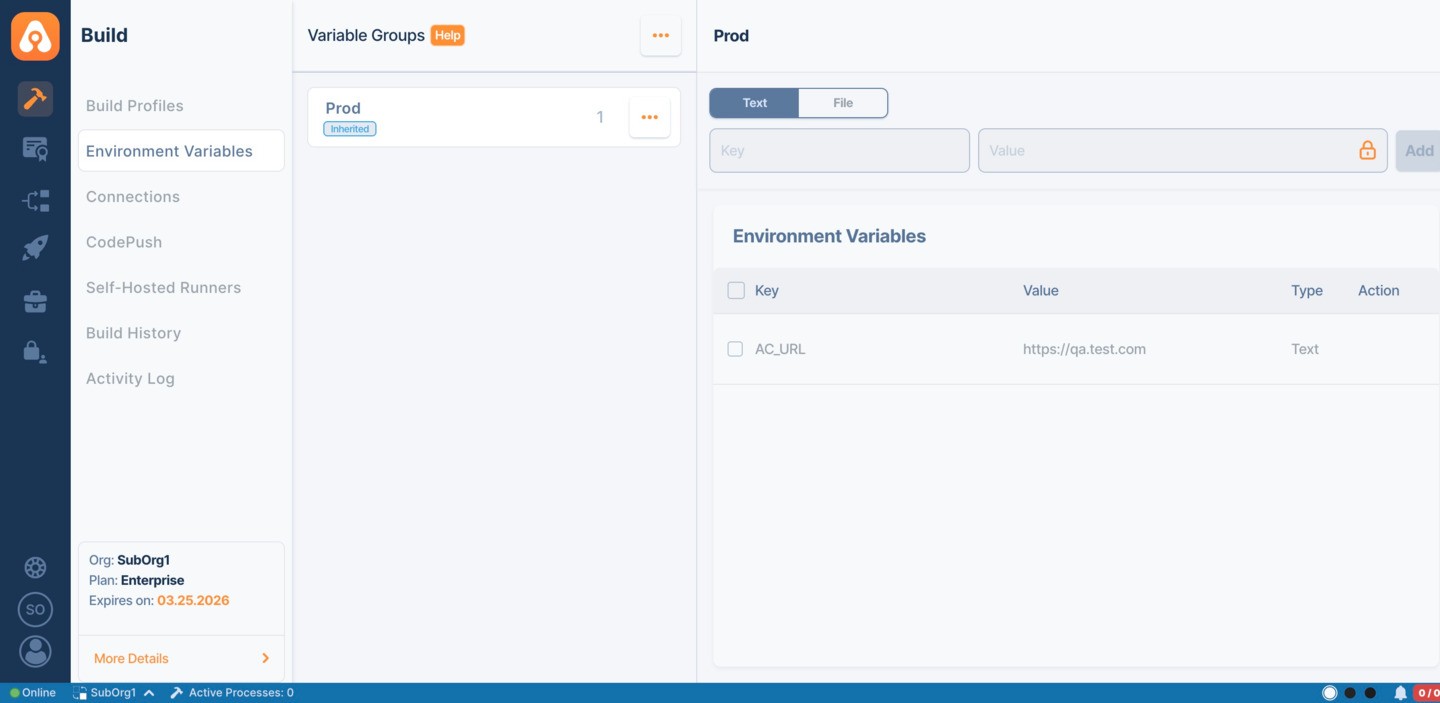
- Users in sub-organizations cannot edit, rename, or delete inherited variable groups.
- Any updates made in the root organization will be reflected in all shared sub-organizations.
Using environment variable groups in builds
Environment variable groups can be used in builds to extend the workflow and add additional actions to workflow steps.
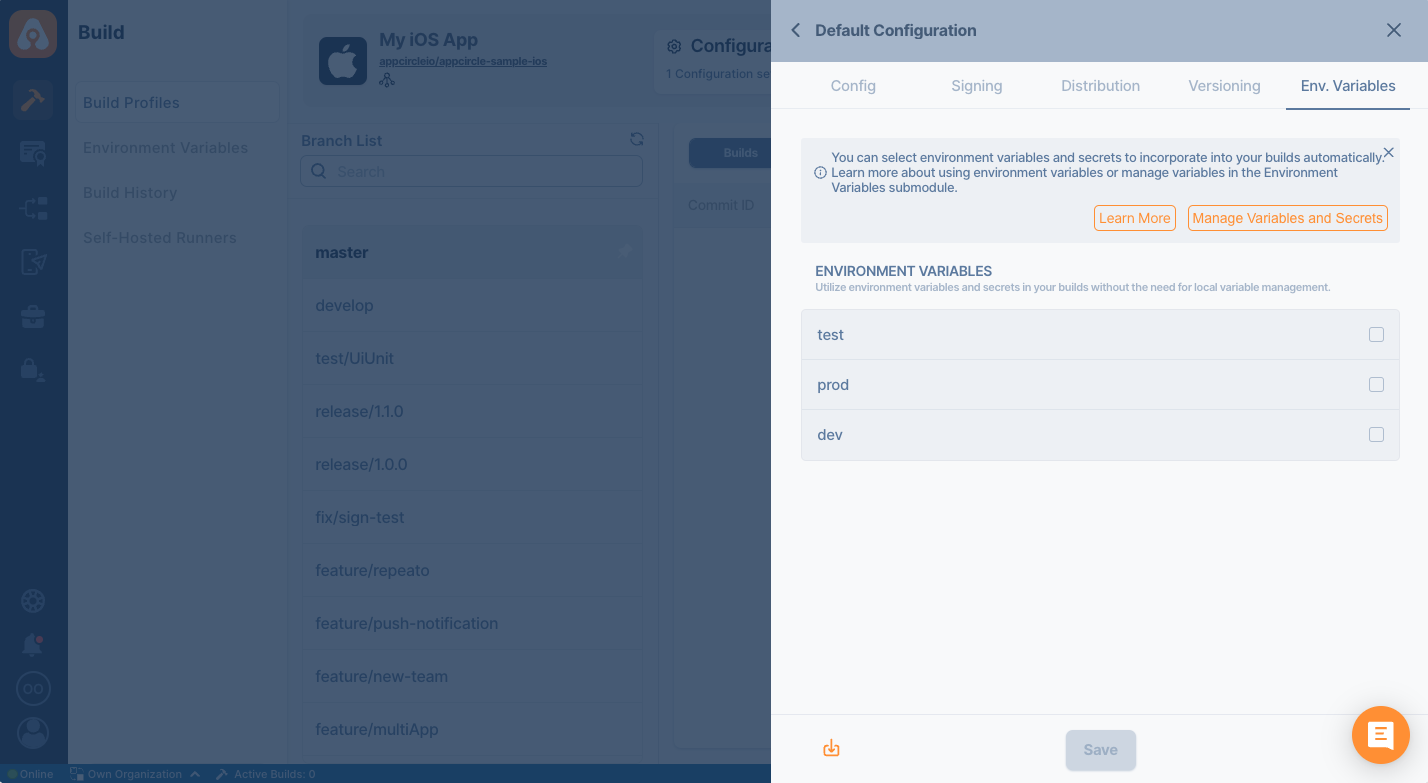
To add an environment variable group to a build, go to the build profile from the build module and select Build Configuration > Env. Variables
Here, you can see a list of previously created environment variable groups. Select the groups you want to be included in this specific build profile. Then click Save to save your selection.
Then in workflows, you can specify the environment variable for use.
Creating environment variables on the fly
If you want to create environment variables on the fly, you should write those environment variables to a special file called AC_ENV_FILE_PATH. For example, if we want to create a build number based on a timestamp and use it in the next steps we can use the following custom script.
echo "BUILD_NUMBER=$(date +%s)" >> $AC_ENV_FILE_PATH
Any step after this custom script can access the $BUILD_NUMBER environment variable.
Using Environment Variables For SSH And PAT (Personal Access Token) Connections of the Git Provider
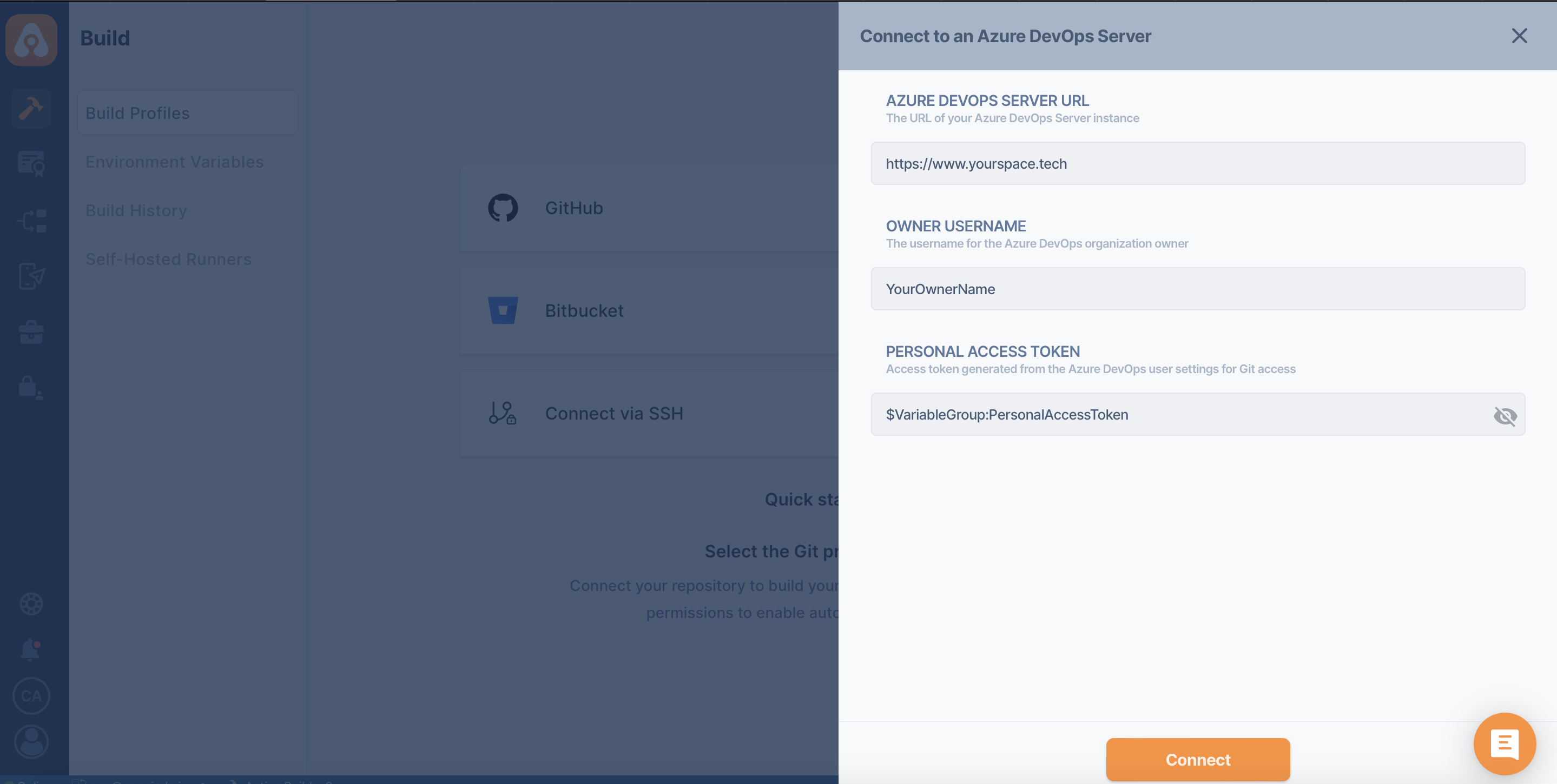
You can use personal access tokens or SSH private keys from the environment variables according to your needs by defining them once.
So you can add environment variables and use them in multiple projects. Also, this usage allows you to update all your projects at once when there is a change to the SSH private key, or PAT.
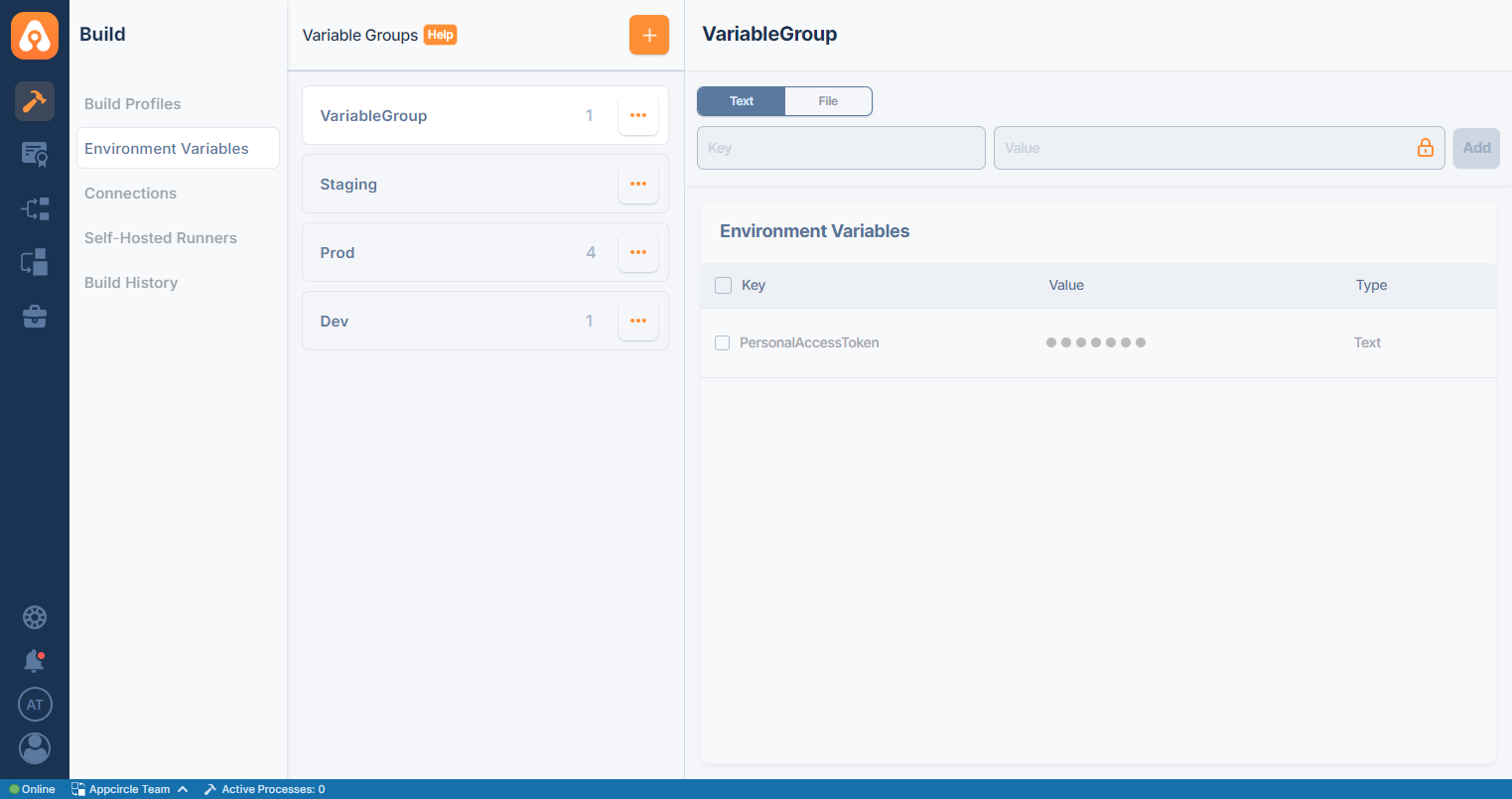
You can create an environment variable and enter the key value for the Personal Access Token.
If you are going to use an SSH private key, you need to upload it as a file.
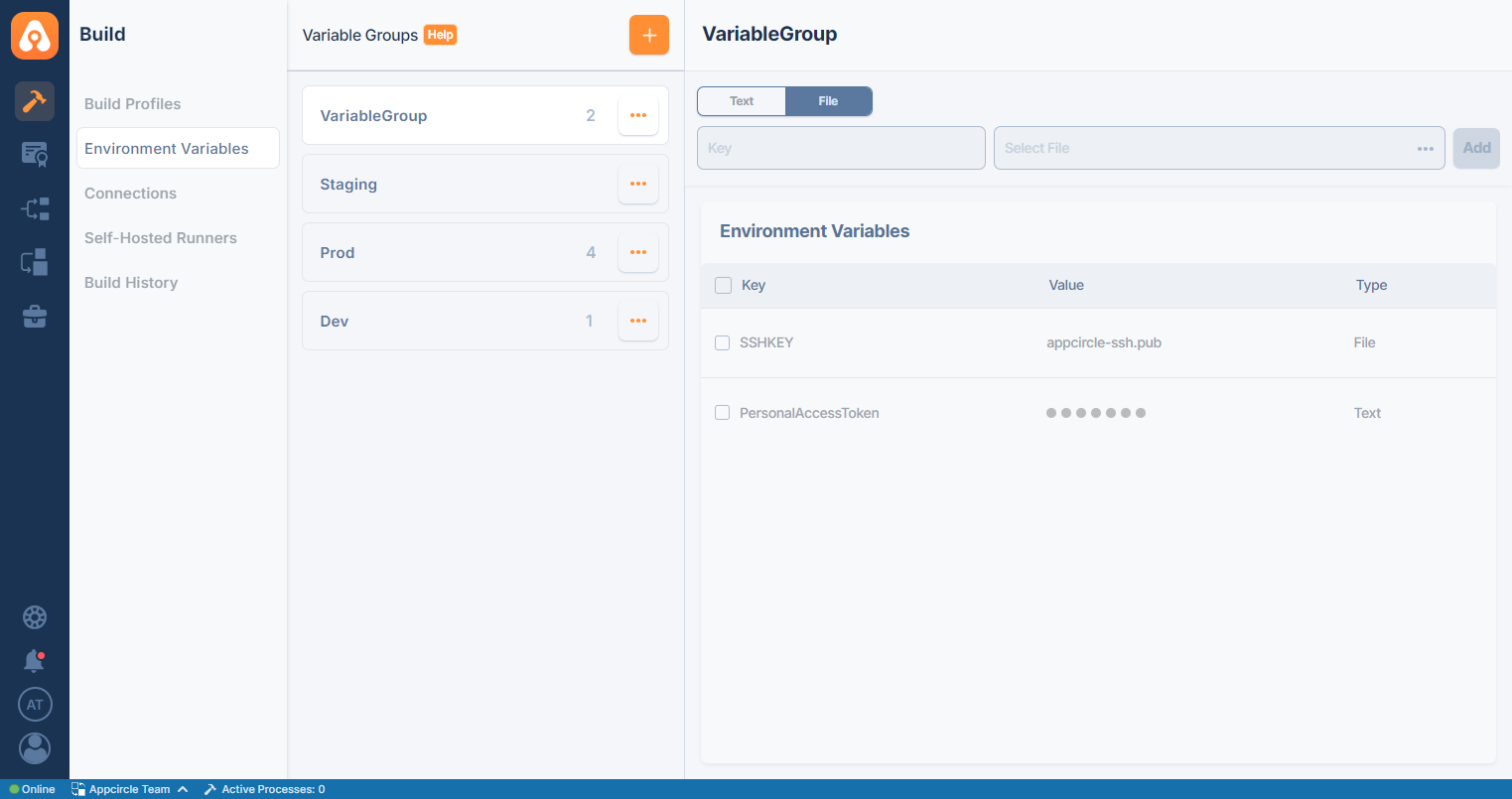
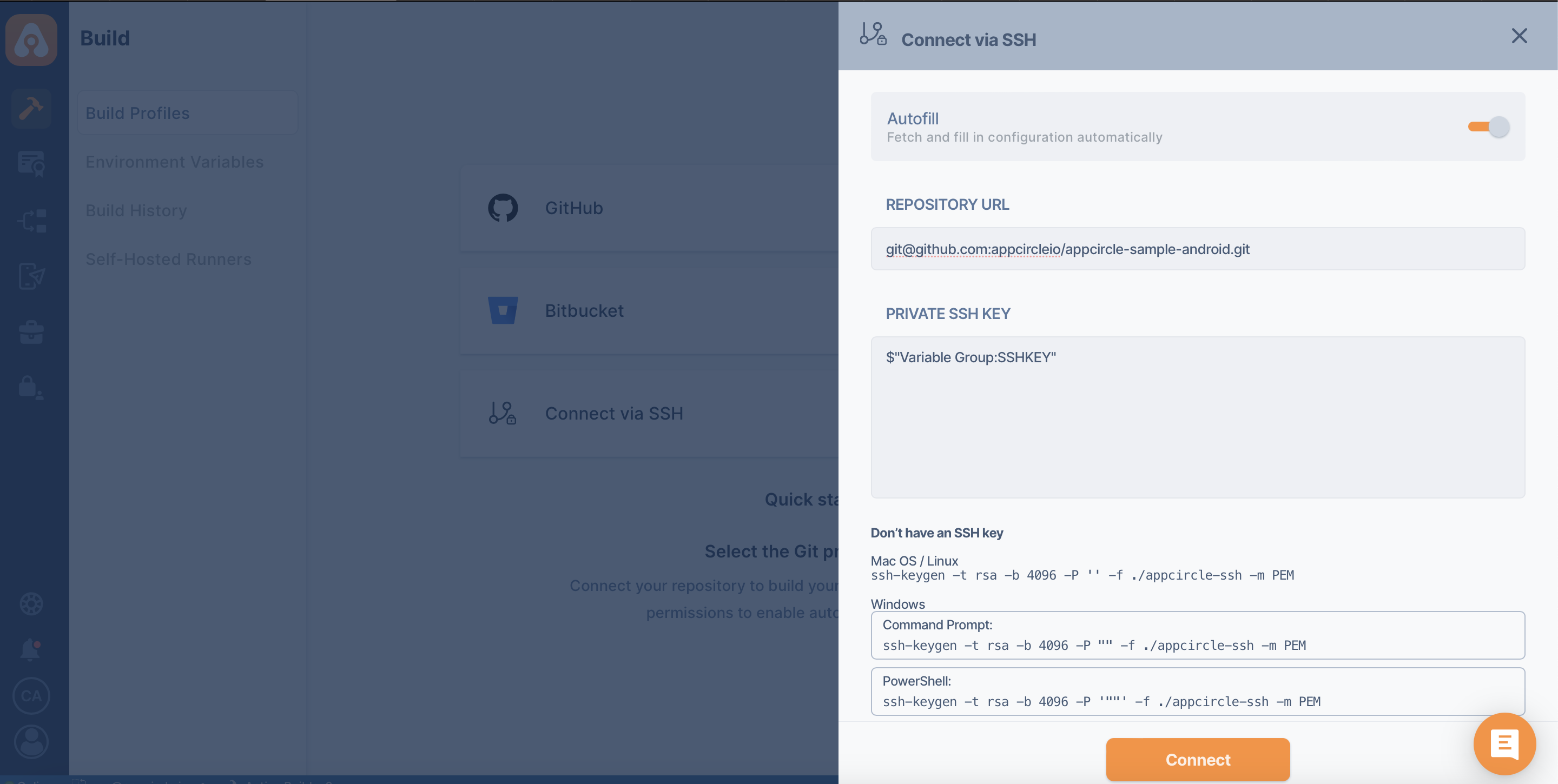
There are two use cases for the variable group naming here.
If the variable group nomenclature contains space, the usage will be as follows:
$"Variable Group:Key"
If the variable group nomenclature does not contain any space, it will be used like this:
$VariableGroup:Key
If your SSH public key is not defined on the Git provider, Appcircle will not be able to connect to your repository. First, you will need to add your public key to the Git provider.
For platform specific environment variables and more detailed information, please refer to the related documentation.